A Client Profile contains detailed information on a specific client, including their registration information, prescription information, credit card details, and insurance policies. Access a Client Profile by selecting a client from the Clients module dashboard.

A Client Profile splits into 13 tabs: Overview, Orders, Prescription Periods, Registrations, Medical Profile, Prescriptions, Credit Cards, Call Logs, Email Logs, Complaints, Policies, Sales Channels, and Recurring Order.
Opening a a Client Profile opens the client's Overview tab opens by default.
Overview Tab
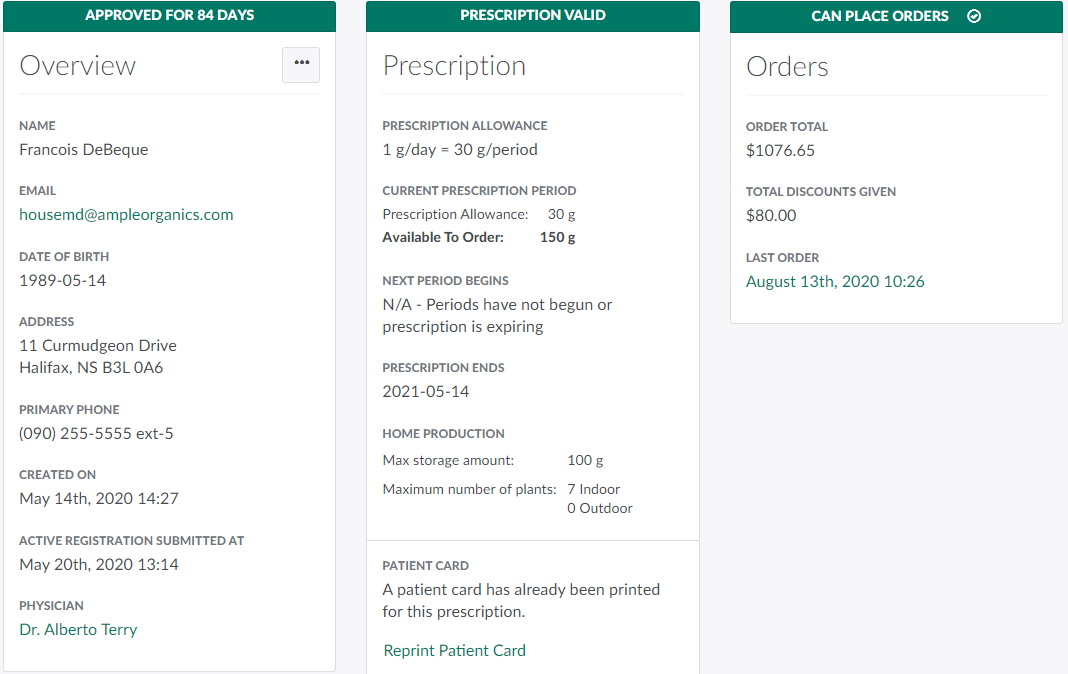
The Overview tab provides a high-level summary of the client's registration status, prescription information, and order history. The Seed-to-Sale software tracks these important fields using a stoplight colour system, also known as Red-Amber-Green (RAG) status:
- Fields in green are approved/valid.
- Fields in yellow require attention.
- Fields in red have been canceled, disabled, and/or require attention.
From the Overview section, you can Login to the Client Portal as the Patient, Send a Password Reset Email to the Patient, or Disable/Enable the client.
Notes

In the Notes section, click New to Create a Note about the client. This is helpful if a client has special needs to accommodate. For example, a deaf or hard-of-hearing client may be unable to communicate by telephone, so a CSR should add a note to indicate that this client prefers to communicate through email.
Documents

In the Documentssection, click Generate to generate a Confirmation of Registration Document, a Confirmation of Registration Amendment Document, or a Confirmation of Registration Renewal Document. Click New to upload a new document.
Navigate back to the Clients module dashboard to Add a New Client.