After a client successfully amends their registration, a Customer Service Representative–CSR–should generate and download the client's Confirmation of Registration Amendment document for internal recordkeeping.
Required permission(s): client_read, client_update
-
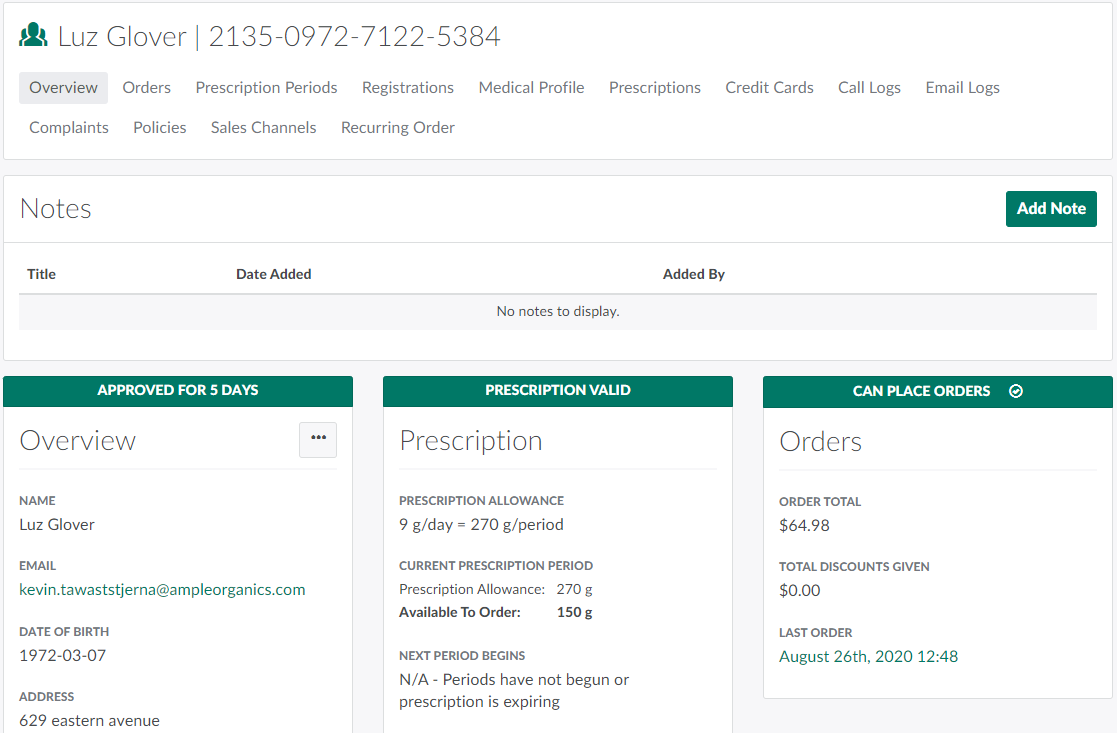
In the Clients module, select a client with a recently amended registration. This opens the Client's Profile.
-
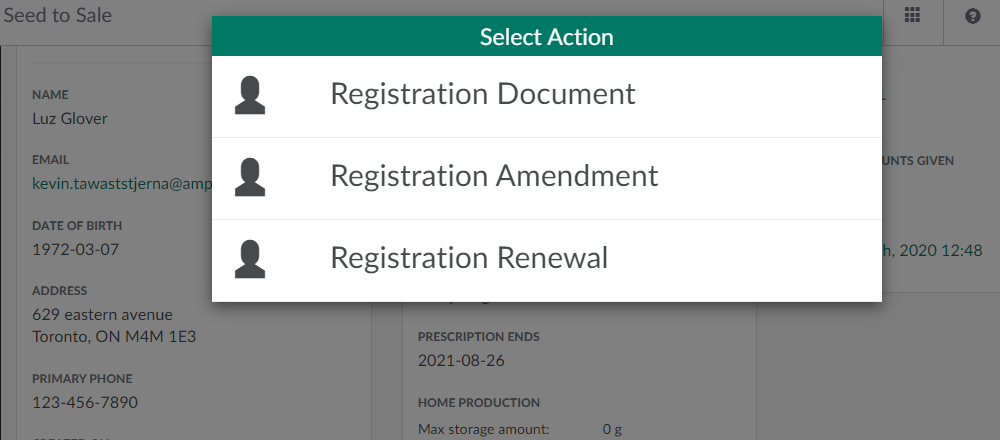
Scroll down to the Documents section and click Generate. This opens a menu of options.
-
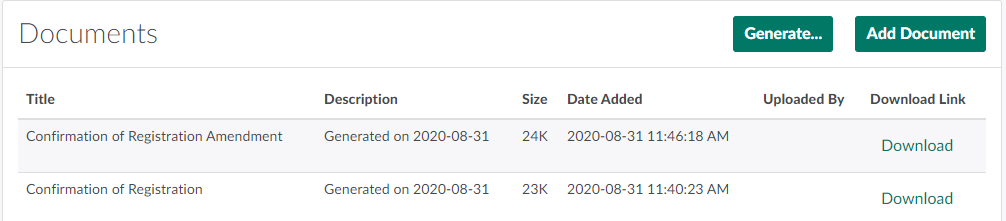
Select Registration Amendment to generate a Confirmation of Registration Amendment document. The new document will appear in the list in the Documents section.

-
Note: The Confirmation of Registration Amendment document will generate only if the client has a completed registration with an Active Prescription.
-
-
Click Download to download the document in PDF format.
A CSR can also generate and download a Confirmation of Registration Document or a Confirmation of Registration Renewal Document.