When propagating cannabis plants, Grow Technicians can preserve desirable traits by taking cuttings from a Mother plant to create a new batch of genetically identical plants.
When a Grow Technician creates a new batch from cuttings, whether through the Grow module or the Gun App, the Seed-to-Sale software generates a record of the cutting event and saves the report to the Cutting Reports sub-tab.
Required permission(s): batch_read, strain_read, batch_create
-
In the Grow module, select the Propagation tab.
[img propagation] -
Open the Cutting Reports sub-tab.
[img cutting-reports] -
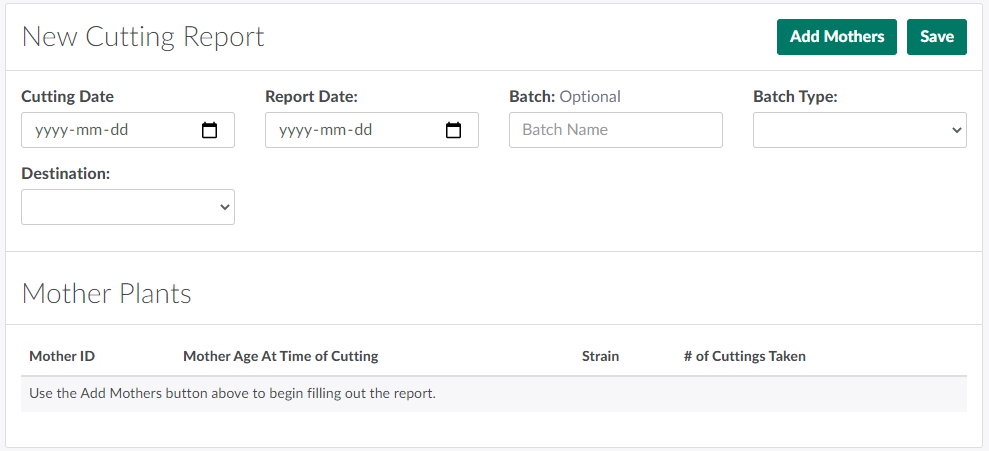
Click New to open a New Cutting Report page.
-
Enter information about the cutting event in the fields provided.
-
Cutting Date: The date on which the Grow Technician(s) took cuttings from the Mother plant. This may not be the same day the report was created.
-
Report Date: The report's date of creation.
-
Batch: A name for the new batch. This field is optional.
-
Batch Type: The new batch's purpose.
- Visit the Grow Settings tab to Add a New Batch Type.
-
Destination: The new batch's location.

-
-
Select the Mother plants from which to take cuttings.
-
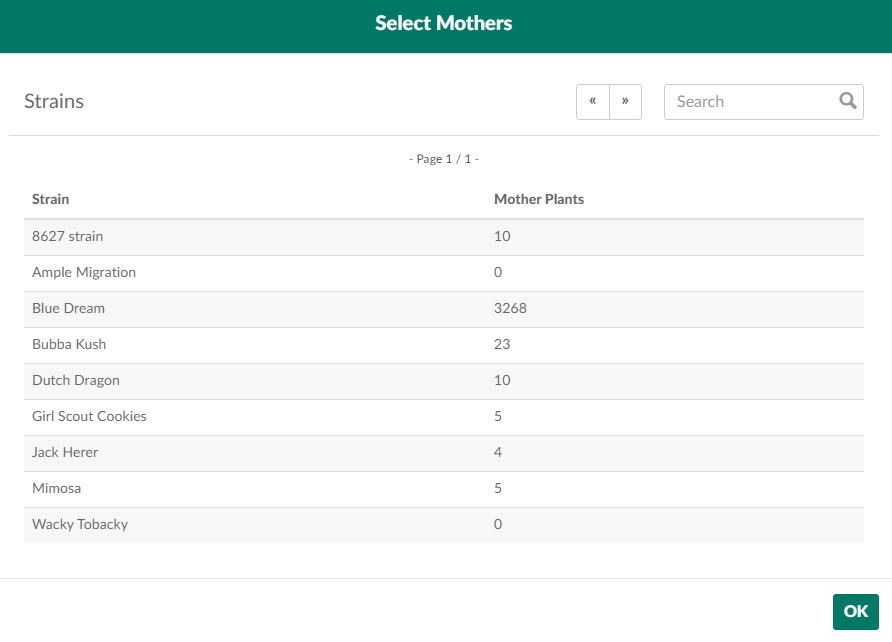
Click Add Mothers. This opens the Select Mothers modal, which lists each cannabis strain saved to the licence holder's system, and the number of Mother plants of each strain.
-
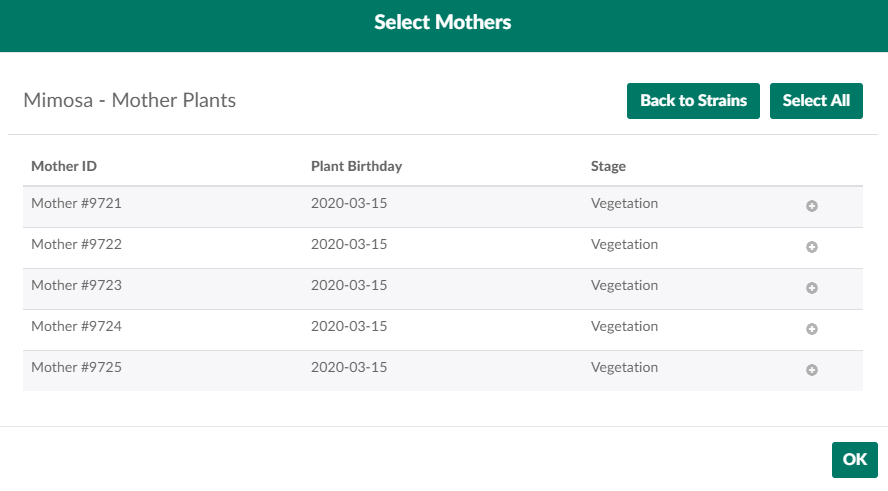
Select a cannabis strain to open a list of all Mother plants of that strain.
-
Select a Mother plant by clicking the

icon.
- Note*: A Grow Technician can select multiple Mothers to contribute cuttings to the new batch. However, all Mothers must be of the same strain.*
-
Click OK to exit the Select Mother modal.
-
-
Scroll down to the Mother Plants section and enter the number of cuttings taken from each Mother.
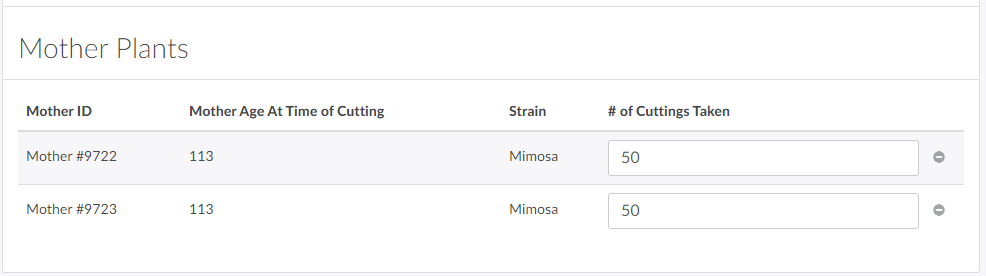
Note*: To remove a Mother plant, click the*

icon beside the Mother.
-
Click Save to finalize the new batch and save a record of the cutting event to the Cutting Reports sub-tab.
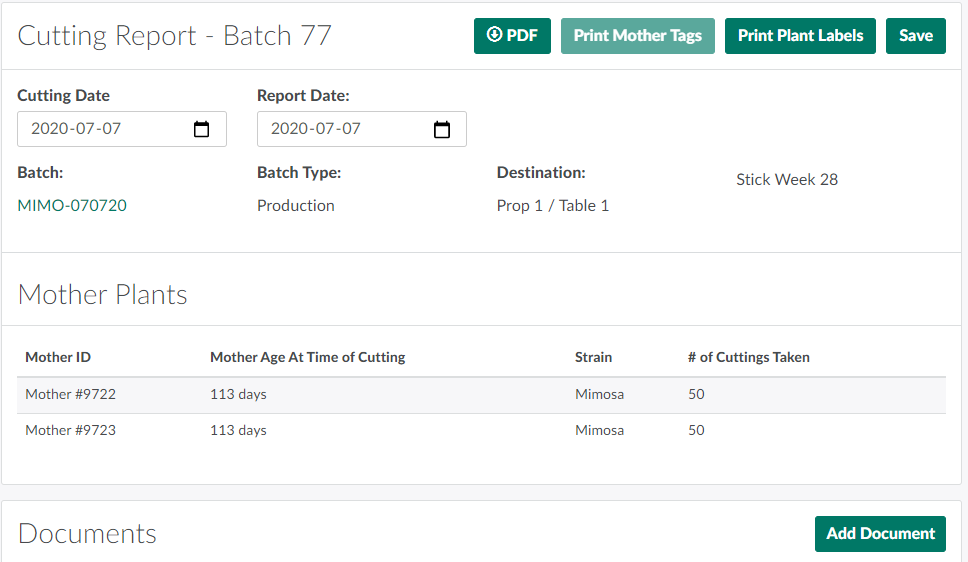
- To Download the Cutting Report, click PDF.
Visit the new Batch's Profile to Print a Batch Tag.
Grow Technicians can also Create a New Batch from Cuttings on the Gun App, Create a Batch from a Seed Lot, or Create a New Batch from Wholesale Plants.