When propagating cannabis plants, Grow Technicians can preserve desirable traits by taking cuttings from a Mother plant to create a new batch of genetically identical plants.
When a Grow Technician creates a new batch from cuttings, whether it's through the Grow module or the Gun App, the Seed-to-Sale software generates a record of the cutting event and saves the report to the Cutting Reports sub-tab.
Required permission(s): batch_create
-
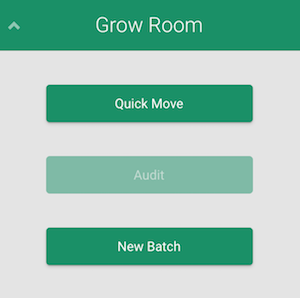
In the Grow Room module, click New Batch.
-
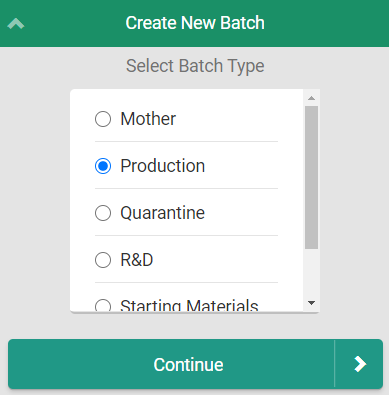
Select a batch type and click Continue.
-
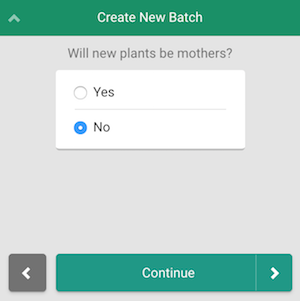
Indicate whether or not the new plants will be Mother plants. Click Continue.
-
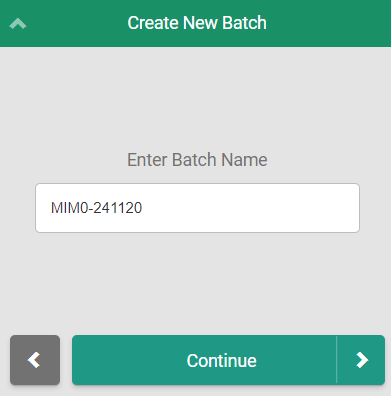
Enter a name for the batch in the field provided. Leave the field blank to accept a default numeric batch name. Click Continue.
-
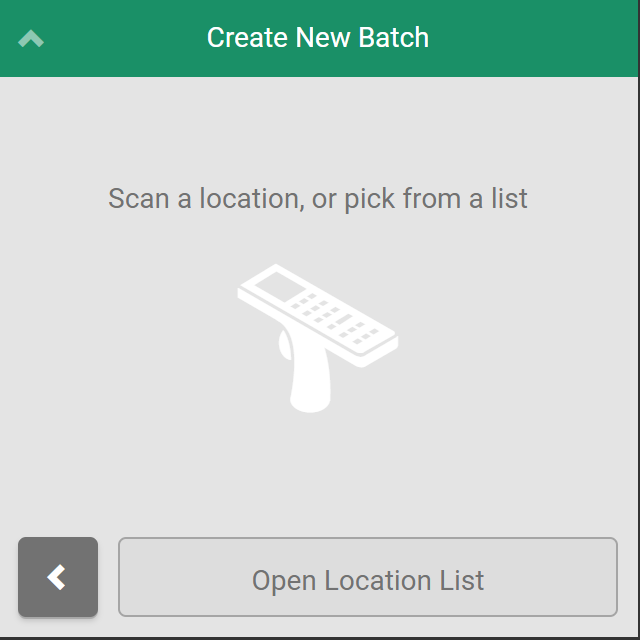
Select a location for the new batch, either by scanning a location barcode or by clicking Open Location List and manually selecting a location.
-
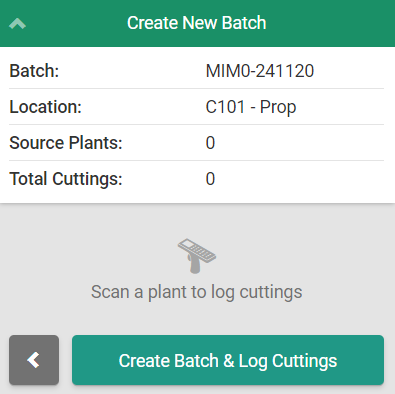
Scan a Mother plant.
-
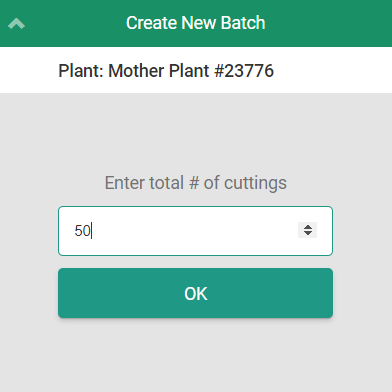
Enter the number of cuttings to take from the Mother plant in the field provided.
-
Click OK.
-
Note*:If the new batch will take cuttings from multiple Mothers, repeat steps 6-8 for each Mother.*
-
-
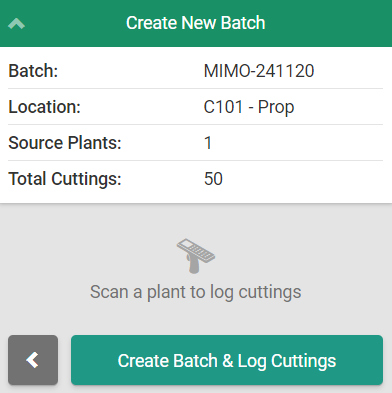
Click Create Batch & Log Cuttings to finalize the new batch. This also saves a record of the cutting event to the Cutting Reports sub-tab in the Grow module.
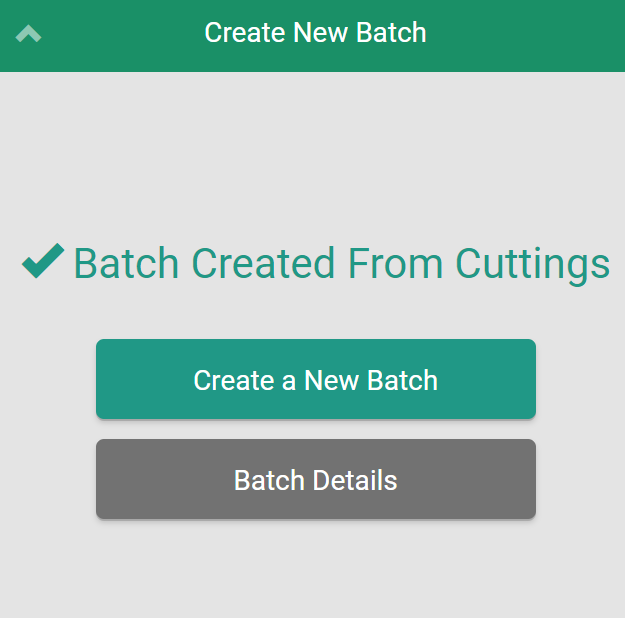
Logging cuttings through the Gun App is one of four ways to create a new batch. Grow Technicians can also Create a New Batch from Cuttings, Create a Batch from a Seed Lot, or Create a Batch from Wholesale Plants in the Grow module.