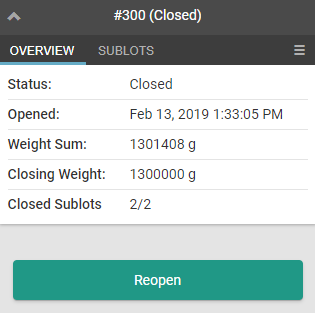
Once a Destruction Lot and its associated child lots/sublots are full of waste, a Grow Technician must close the Destruction Lot in preparation for destruction. Closing a Destruction Lot is the step that precedes destroying the Destruction Lot. When a lot is closed, it means technicians can no longer add weight to it. This ensures that the weight is accurate at the time of destruction.
Required permission(s): destruction_lot_read, destruction_lot_update
-
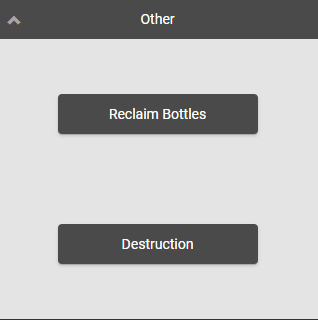
Log into the Gun App and open the Other module.
-
Click Destruction to open a menu of Destruction Lots.
-
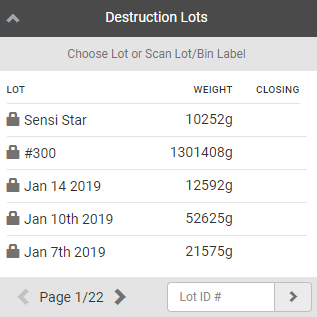
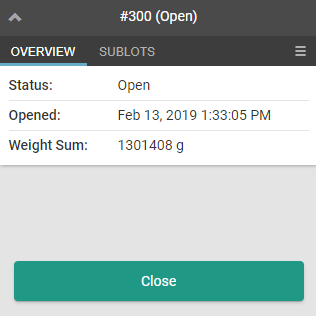
Select a Destruction Lot, or scan the lot, to open the Destruction Lot's Overview tab.
-
Ensure that all the Destruction Lot's sublots are closed.
-
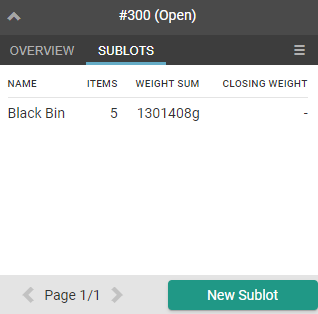
Open the Sublots tab.
-
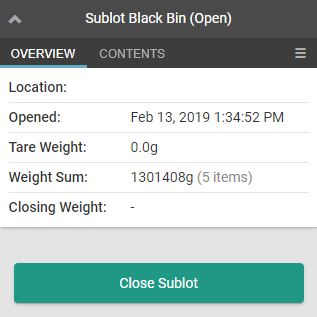
Select a sublot to open the sublot's Overview tab.
-
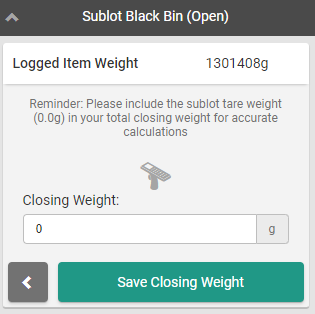
Click Close Sublot. This opens a weighing page.
-
Weigh the sublot and scan the scale, or enter the sublot's closing weight in the field provided.
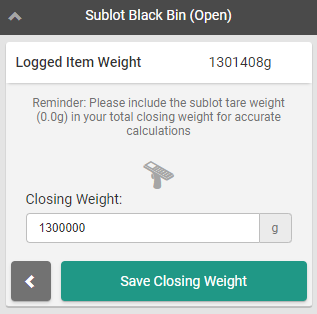
- Note*: The Closing Weight may be less than the Weight Sum if degradation has occurred in the destruction vessel. For example, liquid waste may have partially evaporated, resulting in a lighter closing weight.*
-
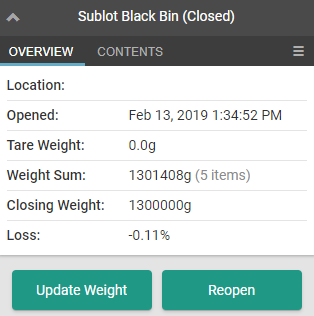
Click Save Closing Weight to close the sublot.
-
Repeat sub-steps a-e for all sublots.
-
-
Click the

icon to navigate back to the Destruction Lot's Sublots tab.
-
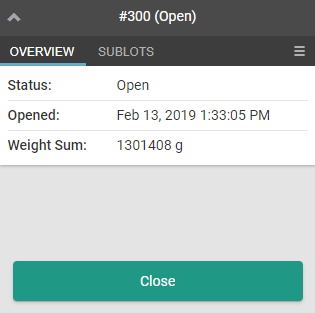
Open the Overview tab.
-
Click Close to close the Destruction Lot.
Most Destruction Lot functions occur through the Destruction module. Visit the Destruction module to Create a New Destruction Lot, Create a New Child Lot (or Sublot), Close a Destruction Lot, or Destroy the Destruction Lot.