Once a client's registration is approved, renewed, or amended, a Customer Service Representative–or CSR–should visit the Email Logs tab to send a confirmation email to the client. This informs the client that their registration update was successful.
Before a CSR can send one of these email templates, they must first generate the document from the Overview tab. Visit the Overview tab to generate a Registration Document, a Registration Amendment Document, or a Registration Renewal Document.
Required permission(s): client_read, client_update
-
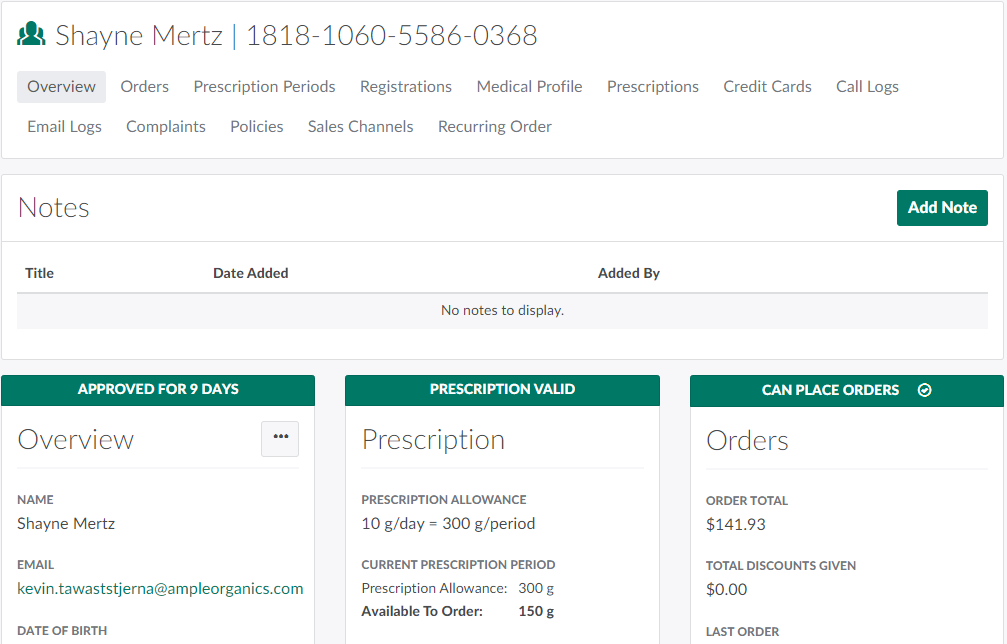
In the Clients module, select a client. This opens the Client's Profile.
-
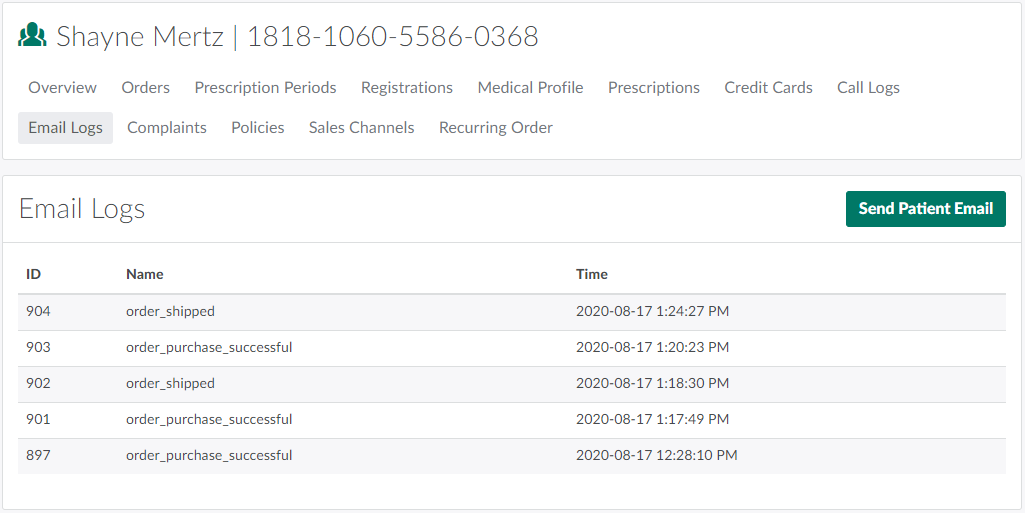
Open the Email Logs tab.
-
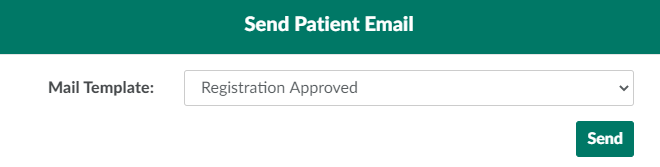
Click Send Patient Email.This opens the Send Patient Email modal.
-
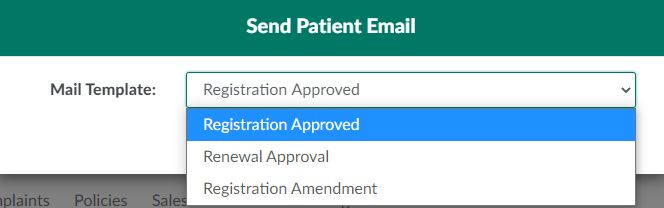
Select a template from the Mail Templatedrop-down menu. To alter the style or text of these email templates, contact support@ampleorganics.com.
-
Click Send. In addition to sending the email to the client, this action adds a record of the email to the Email Logs tab.
Visit the Call Logs tab to Create a New Call Log.