A Grow Technician can download a History Events Report for a specific plant, batch, or Seed Lot. The report summarizes all events in the object's history, including its creation, movement, and destruction.
This article demonstrates how to download a History Events Report for a specific plant, but a Grow Technician can also download a History Events Report for a batch from the Batch's Profile, or download a History Events Report for a seed lot from the Seed Lot's Profile.
-
In the Grow module, open the Propagation tab.
[img propagation] -
Select the Plant Search sub-tab. This opens an index of all living plants in the licence holder's Seed-to-Sale environment.
[img plant-search] -
Select a plant to open the Plant's Profile.
[img plant-profile]- Note*: Quickly locate a specific plant by entering its ID number in the search bar.*
-
In the Events section, click Report. This prompts the History Events Report to download in CSV format.
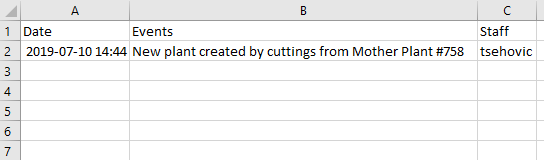
From the Grow module, a Grow Technician can also download a Cutting Report, Seeding Report, Batch Report, or Harvest Report.