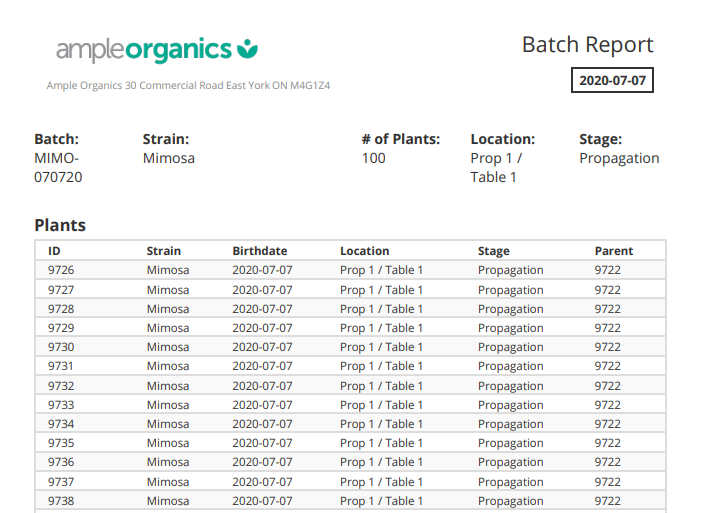
A Batch Report provides a Grow Technician with a snapshot of a batch's current status, including the number of plants in the batch, the batch's location, and information about each plant in the batch.
Required permission(s): batch_read
-
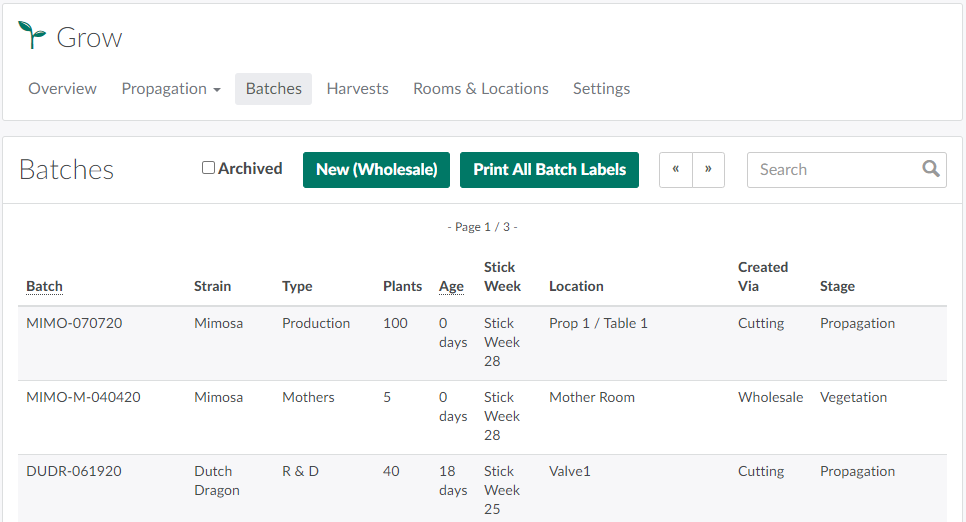
In the Grow module, open the Batches tab.
-
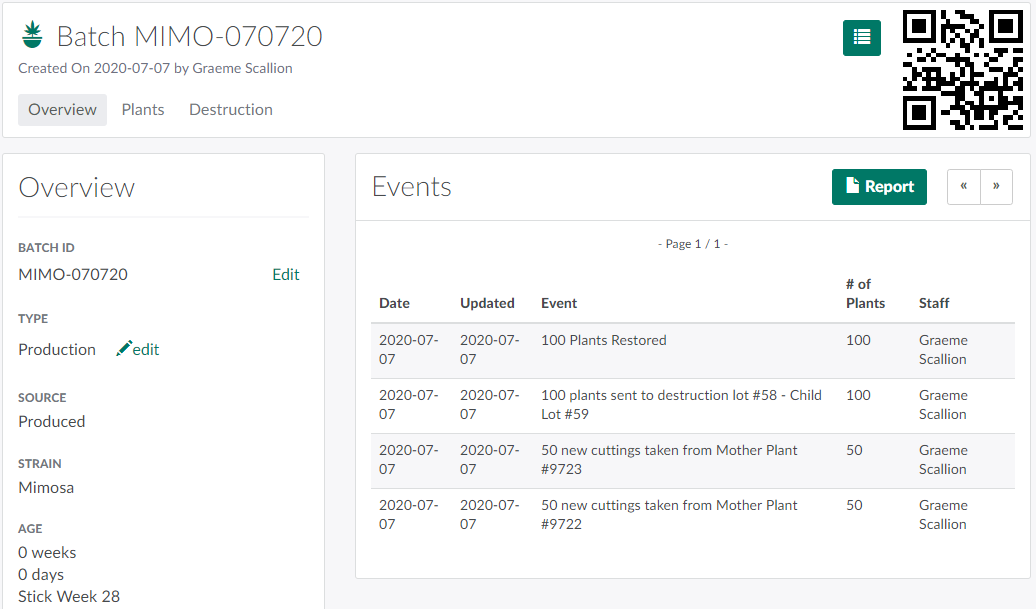
Select a batch to open the Batch's Profile.
-
Click the

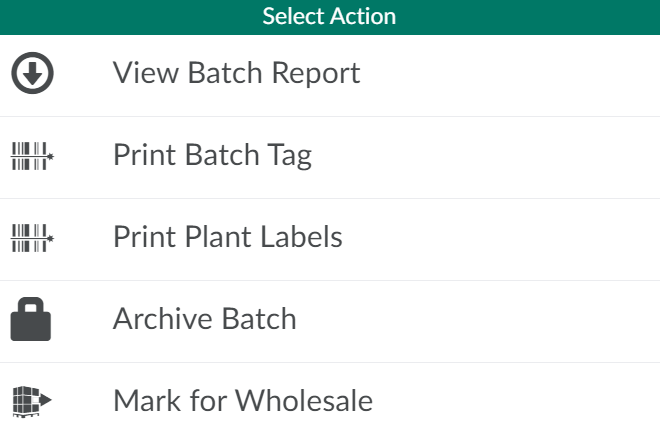
icon to open a menu of options.
-
Select View Batch Report. This prompts the Batch Report to download in PDF format.
From the Grow module, a Grow Technician can also download a Cutting Report, a Seeding Report, or a Harvest Report.