The line items requested in a Sales Order are delivered to the vendor through shipments. A Sales Order may be fulfilled through a single, large shipment. However, the Wholesale application supports partial order fulfillment, so a large Sales Order may be delivered through several smaller shipments. Please note that if the license holder fulfills a Sales Order through multiple shipments, they cannot create a second shipment until the first shipment has shipped.
Creating a Shipment for Bulk Cannabis follows a different process.
Required permission(s): sales_order_read, shipment_create, shipment_read
-
In the Wholesale application, open the Sales Orders tab. It should be open by default.
[img sales-order-index] -
Select a Packaged Sales Order to open the Sales Order's Profile.
[img sales-order-profile-packaged] -
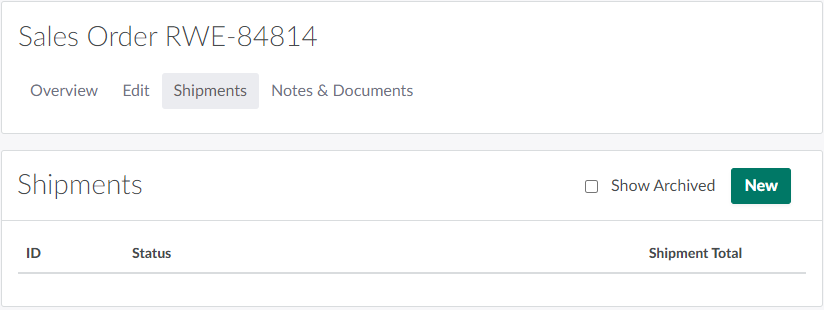
Open the Shipments tab.
-
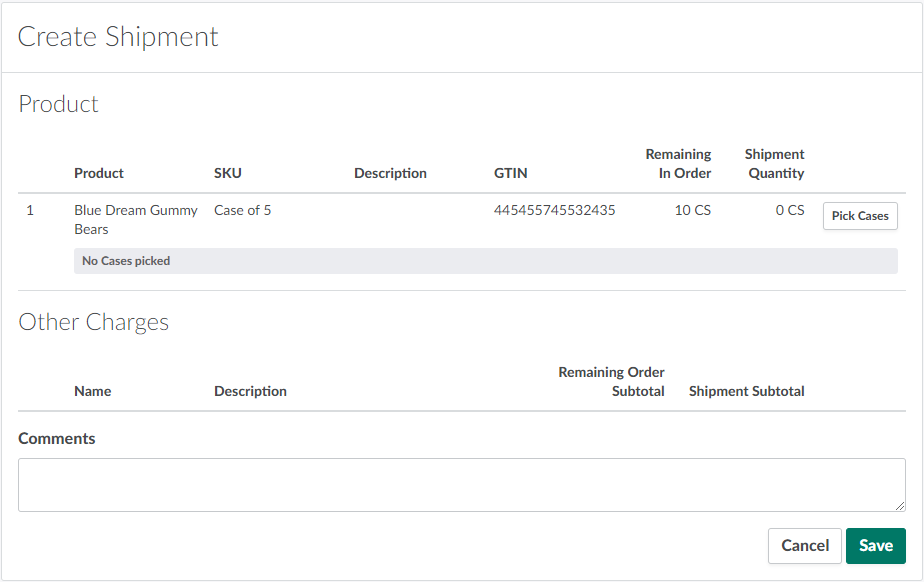
Click New to open a Create Shipment page.
-
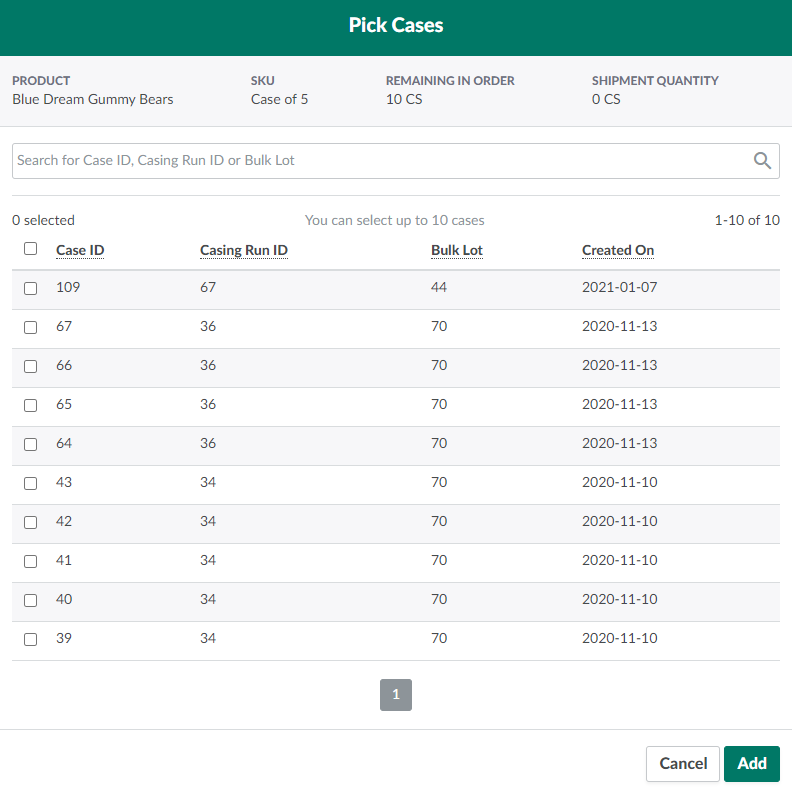
Select a line item, and click Pick Cases. This opens the Pick Cases modal, which allows you to select specific Case IDs to add to the new shipment.
-
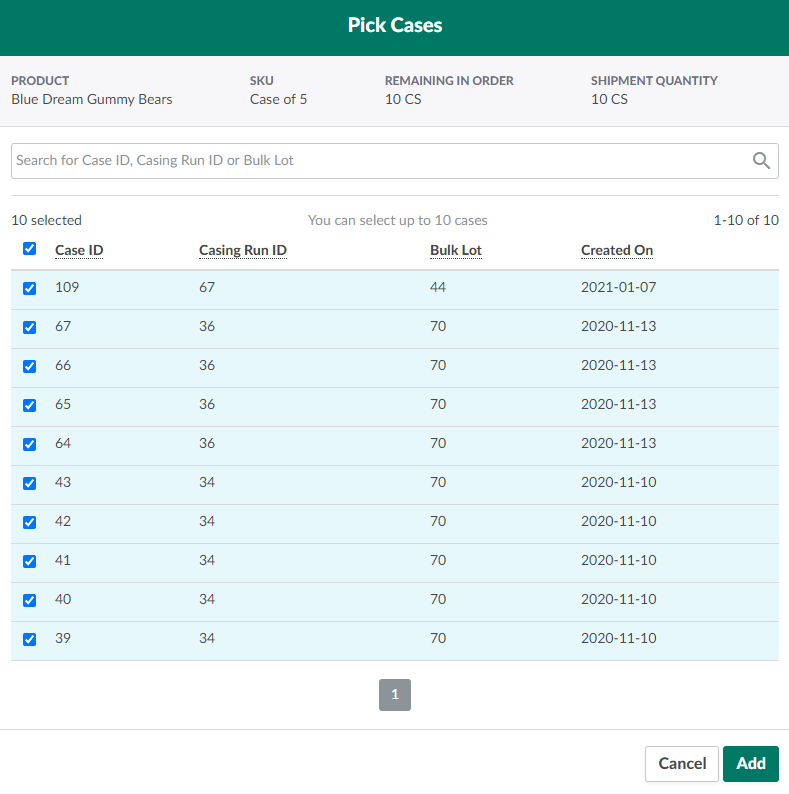
Select specific Case IDs to add to the shipment by checking boxes in the leftmost column.
-
Note*: Quickly filter the list by entering a Case ID, Bulk Lot ID, or Casing Run ID in the search bar.*
-
-
Once all desired cases are selected, click Add. The selected cases will appear beneath the line item.
-
Note*: To remove a case from the shipment, click the*

icon.
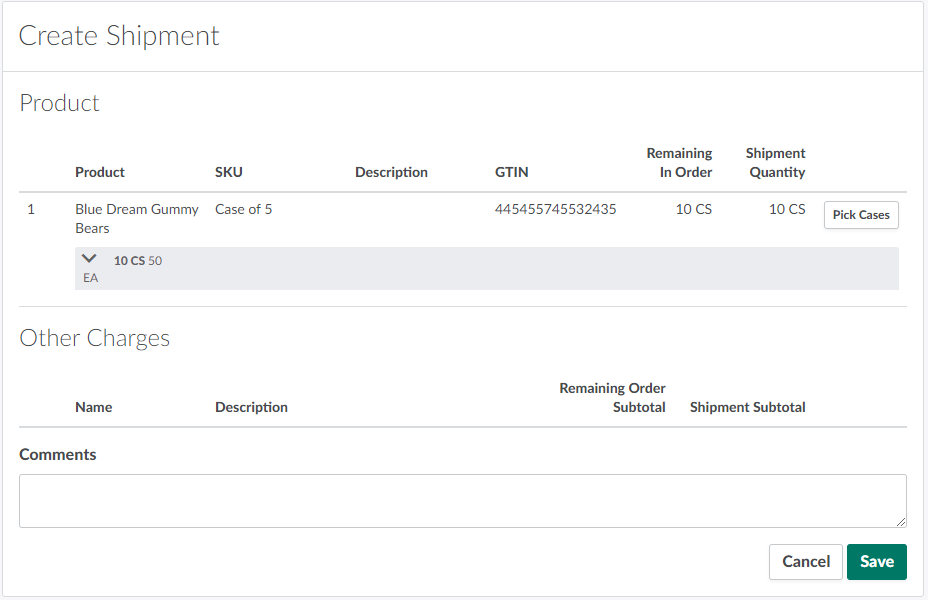
-
-
Repeat steps 5-7 for each line item, as applicable.
-
Enter any comments about the shipment in the field provided. This is an optional step.

-
Click Save. This creates a new Shipment Profile and marks the selected Case IDs as Unavailable/Picked.
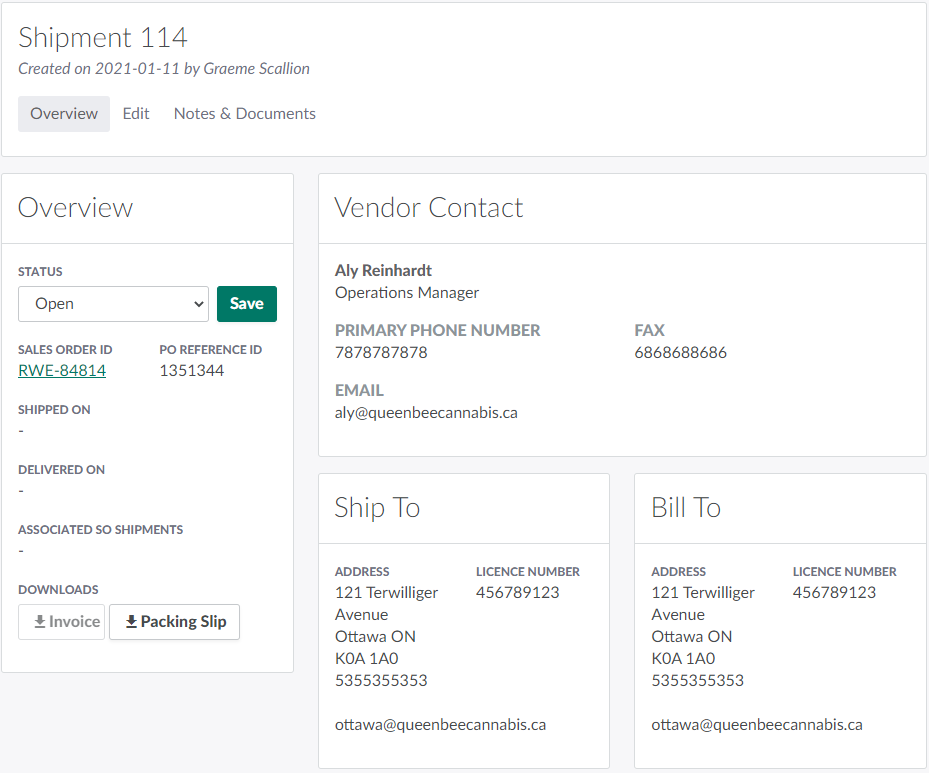
Once the shipment has been created, Manage the Shipment's Status or Download a Shipment Invoice. You can edit the shipment as long as the shipment is in an open status–Open, Approved, or Picked & Packed. However, shipments that have been Shipped or Delivered cannot be reverted to a previous status.