Once the vendor confirms that they have received the shipment, mark the shipment as Delivered to finalize the shipment.
Required permission(s): sales_order_read, shipment_read, shipment_update
-
In the Wholesale application, open the Sales Orders tab. It should be open by default.
[img sales-order-index] -
Select a Sales Order to open the Sales Order's Profile.
[img sales-order-profile-unpackaged] -
Open the Shipments tab.
[img shipments-tab] -
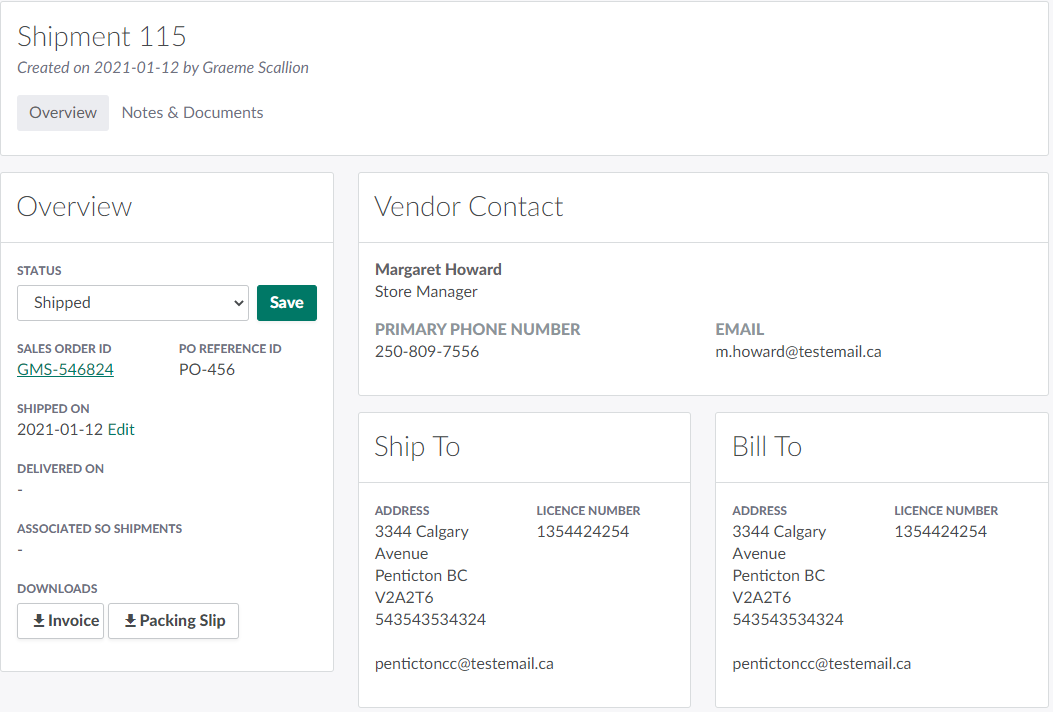
Select a shipment in the Shipped status to open the Shipment's Profile.
-
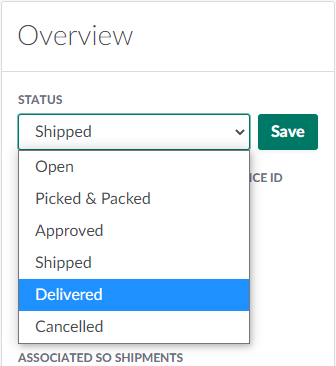
In the Overview section, open the Status drop-down menu and select Delivered.
-
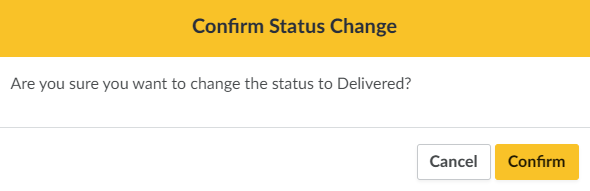
Click Save. This opens a confirmation modal.
-
Click Confirm. This marks the shipment as Delivered.

- Note*: By default, the Date Delivered field updates to the current date. If the shipment was delivered at an earlier date, click Edit to adjust this field for accuracy.*
As the vendor receives shipments, Change the Sales Order's Status to Partially Fulfilled or Fulfilled.