Orders that are covered by an insurance policy such as Veterans Affairs Canada are co-billed. This means the patient will only pay the out-of-pocket amount–which may be zero–and the licence holder will be reimbursed by the insurance company. When an order covered by a policy has shipped, a Customer Service Representative–or CSR–must generate a Policy Receipt. The Policy Receipt includes information tailored to the insurance company and will omit any product specific information.
Required permission(s): order_read, order_update
-
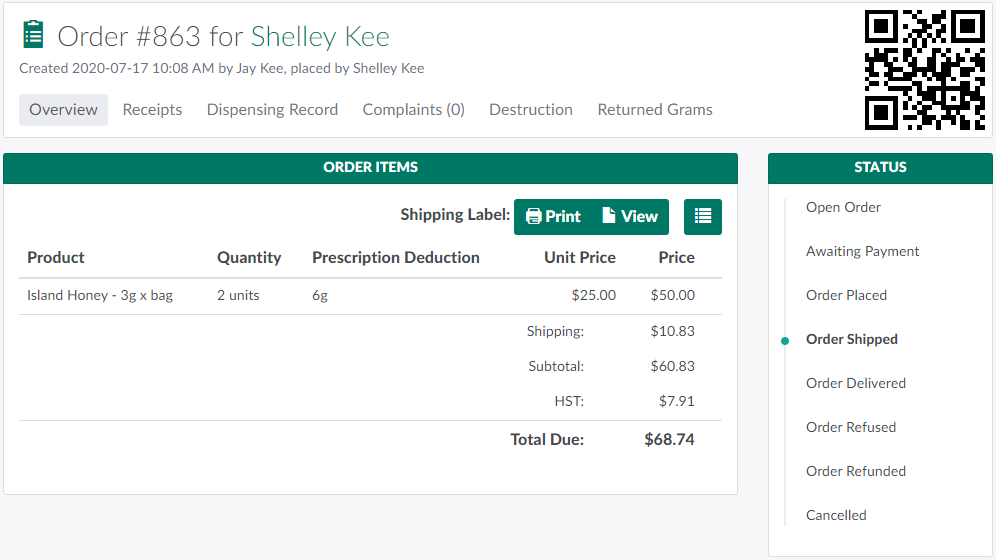
In the Orders module, select an order that has been covered by a policy.
-
Note*: The order must be Placed, Shipped, or Delivered.*
-
-
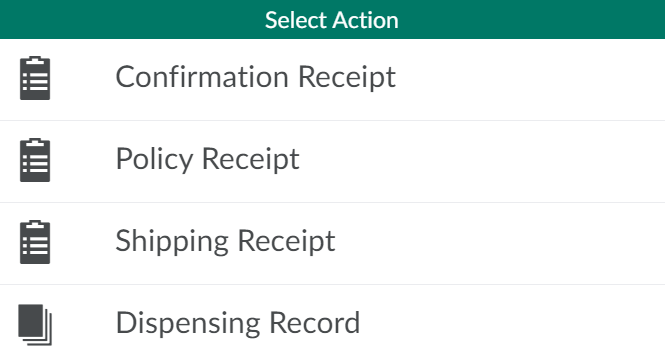
Scroll down to the Documents section, and click Generate to open a menu of options.
-
Select Policy Receipt to generate a new Policy Receipt. The new receipt will appear in the list in the Documents section.

-
Click Download to download the receipt.
The CSR can also Generate and Download a Confirmation Receipt or Generate and Download a Shipping Receipt.
Visit the Client's Profile to Add a Policy to the Client.