After Creating a New Tote to manage a subset of a Bulk Lot's weight, a Processing Technician should immediately label the tote. Labeling a tote serves two distinct purposes: First, the label identifies the tote by its unique name and ID number. Secondly, and most importantly, each label includes a unique barcode that Packaging Associates can scan to package cannabis from the tote through the Gun App.
Required permission(s): production_read
-
In the Productions module, select a production.
[img production-profile] -
Select a Bulk Lot. This opens the Bulk Lot's Profile.
[img bulk-lot-overview] -
Open the Totes tab.
[img bulk-lot-totes] -
Click the

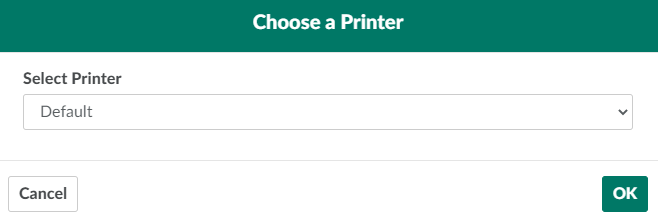
icon beside a tote to open a printing modal.
-
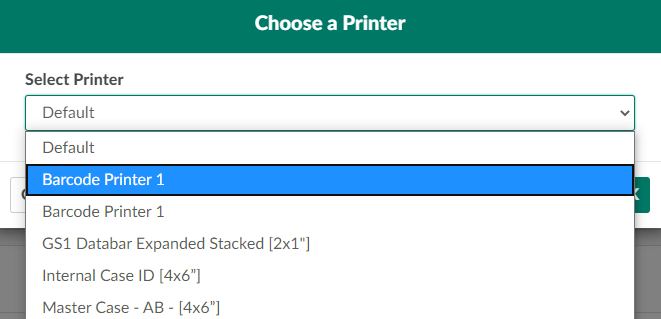
Open the drop-down menu provided, and select a printer.
-
Click OK to print a tote label. Affix the label to the tote immediately.
From the Productions module, a Processing Technician can also print labels for Vault Locations and Picking Bins, Bulk Lots, and Retention Samples.