If a QA Technician destroys bottles in error, they can follow the steps below to revert the bottle destruction. Through the Bottle Destruction sub-tab, you can restore bottles individually or restore several bottles at once.
Required permission(s): production_read, destruction_lot_read, bulk_lot_update
-
In the Productions module, select a production.
[img production-profile] -
Select a Bulk Lot. This opens the Bulk Lot's Profile.
[img bulk-lot-overview] -
Open the Destruction tab.
[img bulk-lot-destruction] -
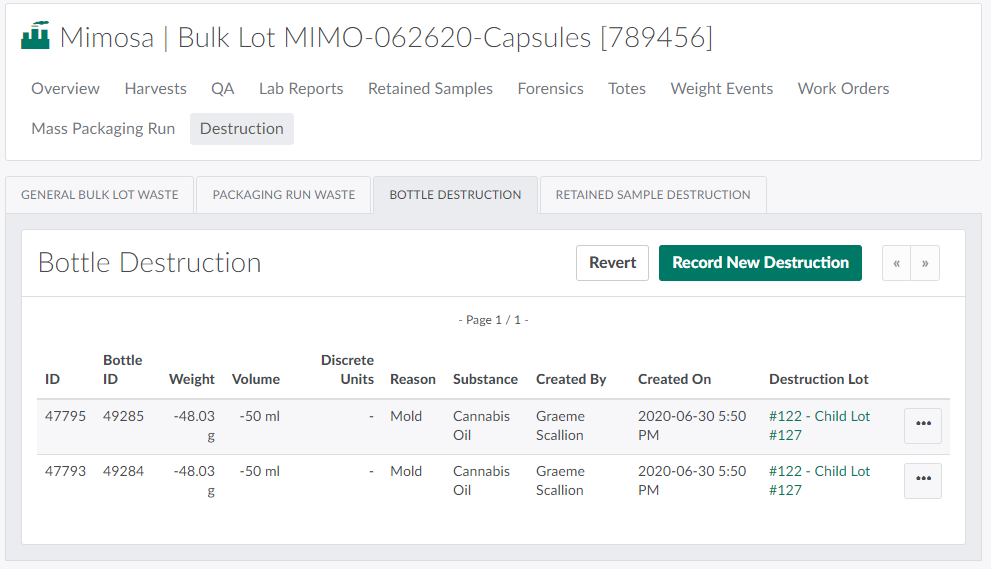
Open the Bottle Destruction sub-tab.
-
Restore a single bottle, or restore multiple bottles at once.
-
To restore a single bottle:
-
Click the

icon beside a destroyed bottle to open a menu of options for the destruction.

-
Select Revert Destruction to restore the bottle.

-
-
To restore a range of bottles:
-
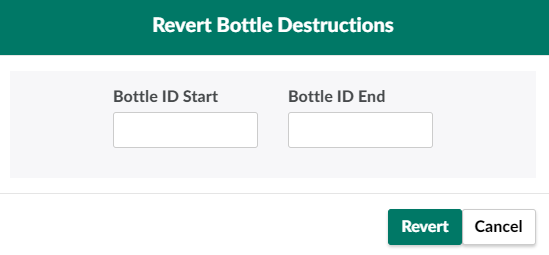
Click Revert. This opens the Revert Bottle Destructions modal.
-
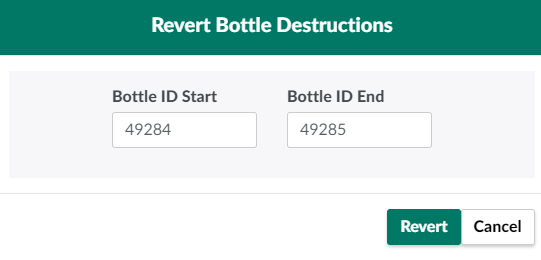
Enter the range of bottles ID numbers to restore in the fields provided. Ensure all bottles in the range have been destroyed.
-
Click Revert to restore the bottles.

-
-
The Destruction tab also allows QA Technicians to Restore General Bulk Lot Waste, Restore Packaging Run Waste, and Restore a Destroyed Retained Sample.