After adding a new scale, you should immediately label the scale. Labelling a scale serves two purposes: First, the label identifies the scale by its name and unique ID number. Secondly, and most importantly, each label includes a unique barcode that users can scan to interact with the scale through the Gun App. If a scale is connected to the Seed-to-Sale software, you can weigh an item and scan the scale's barcode to read the item's weight rather than entering the value manually.
-
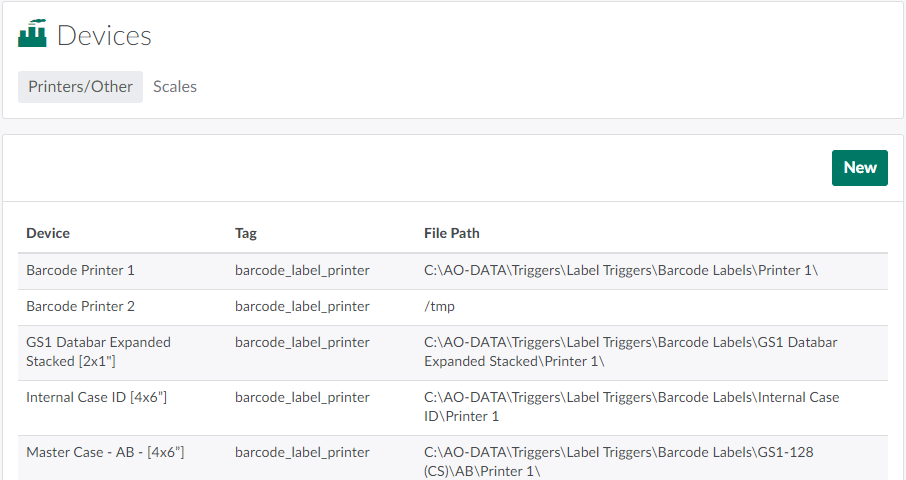
In the Settings module, open the Devices tab.
-
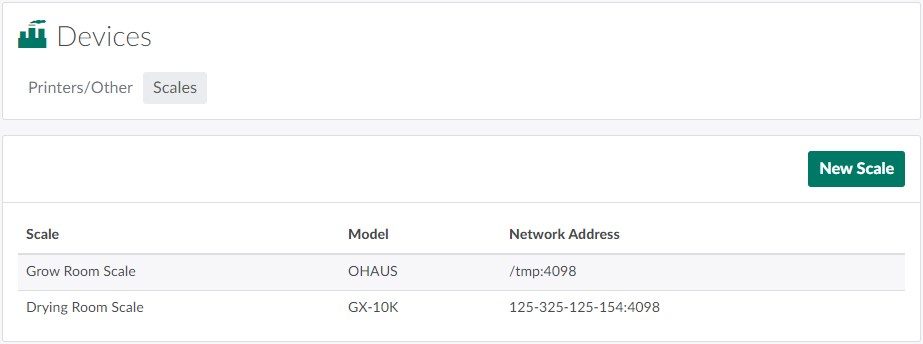
Open the Scales tab.
-
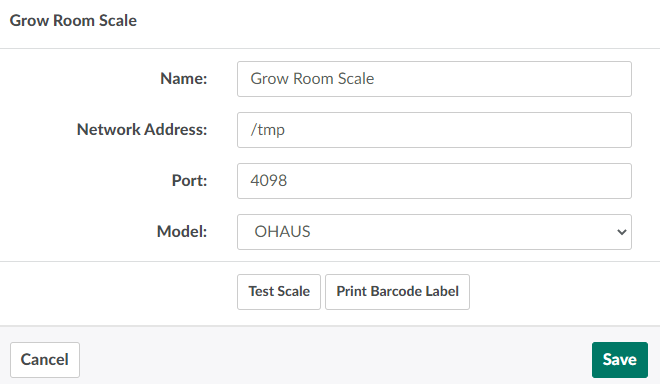
Select a scale. This opens a modal with further information about the scale.
-
Click Print Barcode Label. This opens a printing modal.
-
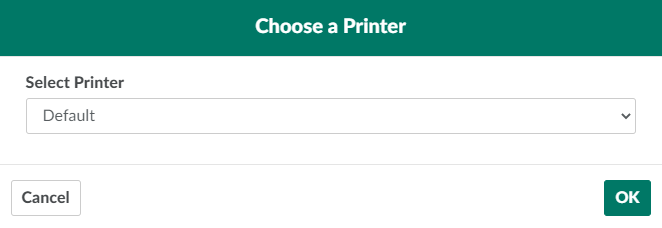
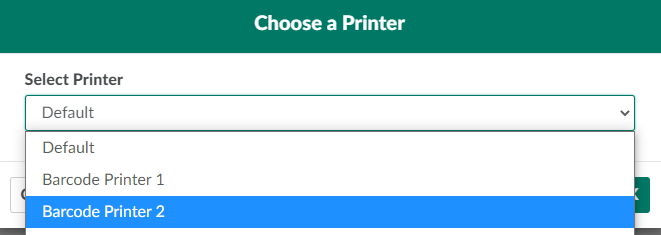
Open the provided drop-down menu, and select a printer.
-
Click OK to print a label for the scale. Affix the label to the scale immediately.

From the Settings module, you can also Print a User Barcode Label, Reprint a Bottle Label, or Print All Product Barcodes on an 8.5" X 11" page.