If a bottle loses its label, a Fulfillment Associate should immediately print a new label for the bottle. Labeling a bottle serves two distinct purposes: First, the label identifies the bottle with a unique ID number. Secondly, and most importantly, each label includes a unique barcode that Fulfillment Associates can scan to interact with the bottle in the Gun App.
An associate can also Reprint a Bottle Label through the Gun App.
-
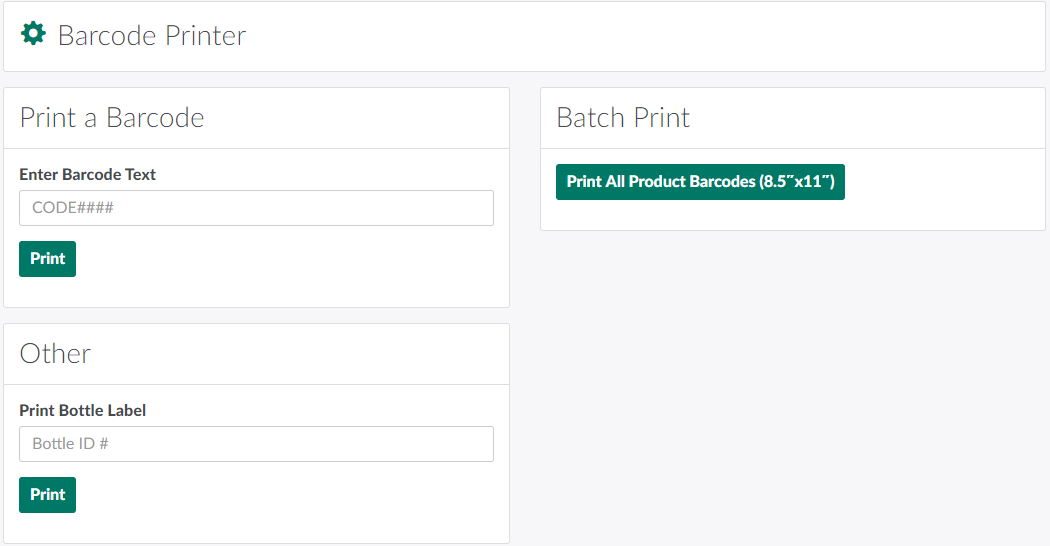
In the Settings module, open the Print Barcode utility tab.
-
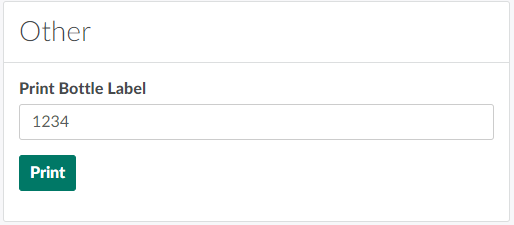
In the Other section, enter the bottle's ID number in the field provided.
-
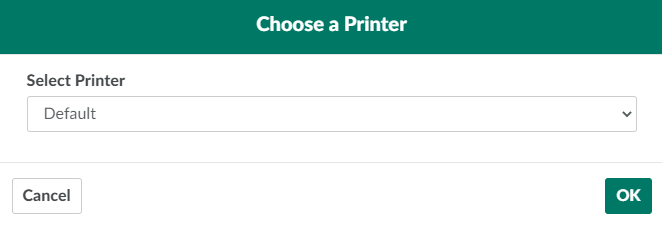
Click Print to open a printing modal.
-
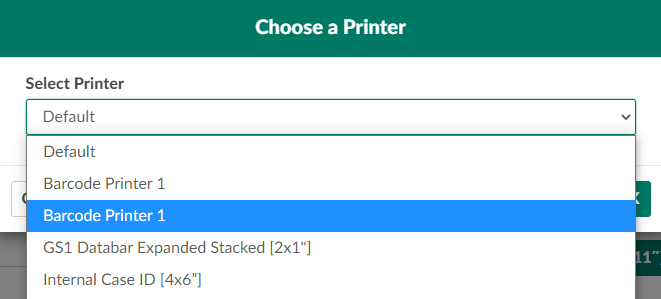
Open the drop-down menu provided, and select a printer.
-
Click OK to print the bottle label. Affix the label to the bottle immediately.
From the Settings module, you can also Print all Product Barcodes or Print a Custom Barcode.