When Adding a New Prescription, a Customer Service Representative–or CSR–may need to enter information for a prescribing physician who is not yet added to their system. Rather than exiting the Clients module, the CSR can add a new physician directly from the Prescription page.
Required permission(s): client_read, physician_create, physician_read
-
In the Clients module, select a client.
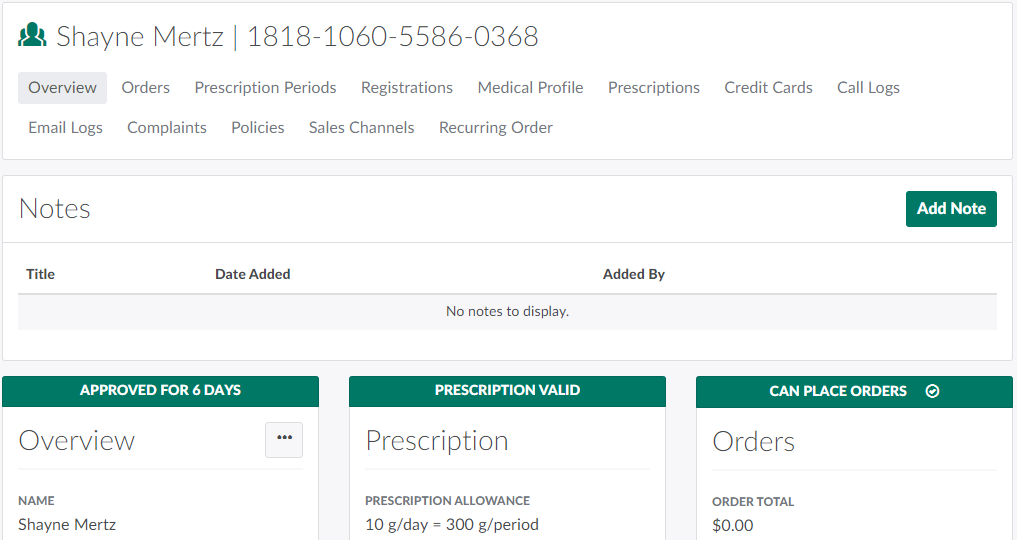
-
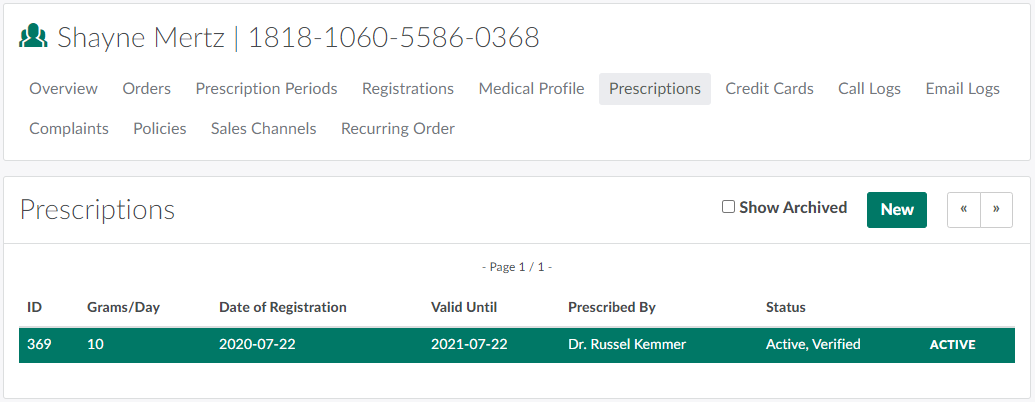
Open the Prescriptions tab.
-
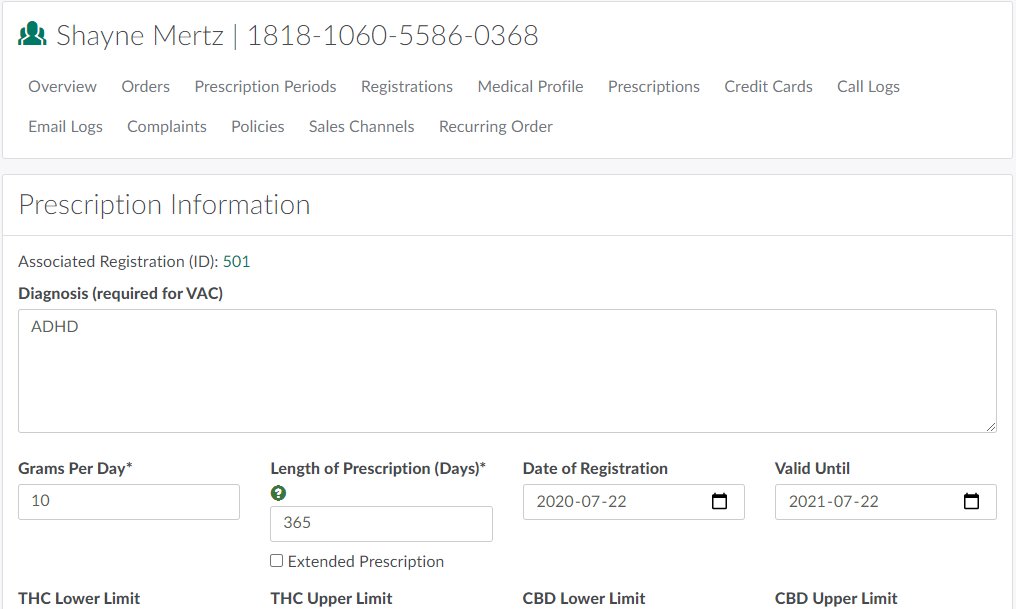
Select an existing prescription or click New to Add a New Prescription. Either way, this opens a Prescription page.
-
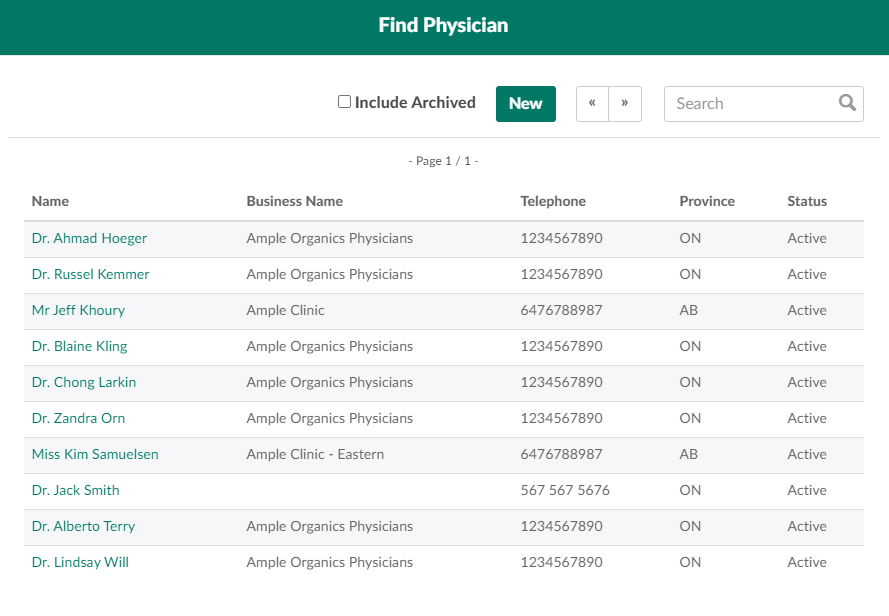
Scroll down to the Physician section, and click Find.This opens the Find Physician modal.
-
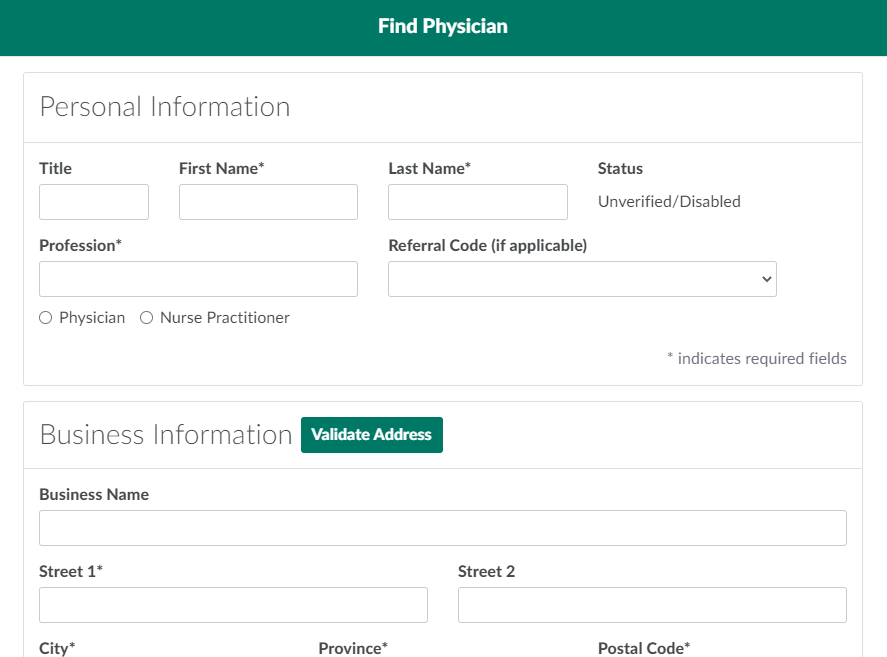
Click New to open a new physician form.
-
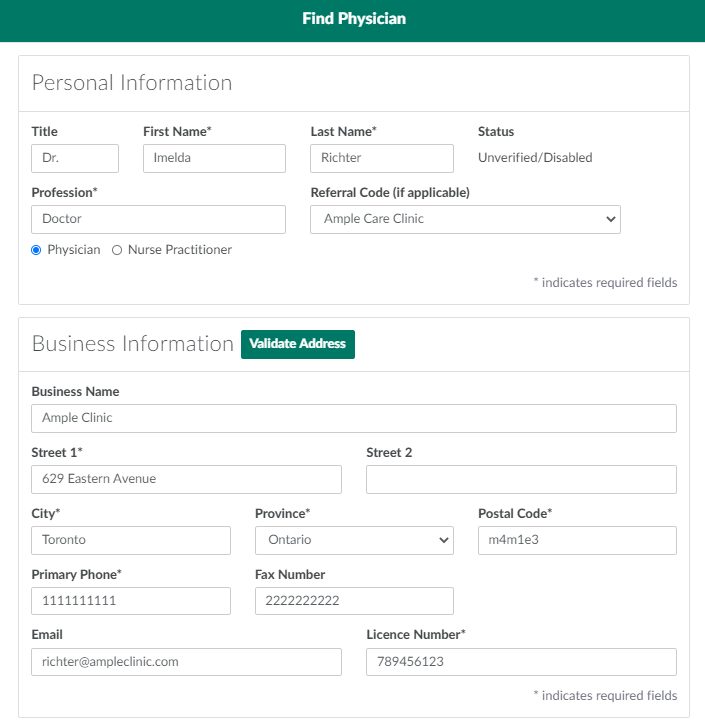
Fill out the required fields in the Personal Information and Business Information sections.
-
Click Validate Address to confirm that the physician's business address exists.
-
Verify the physician.
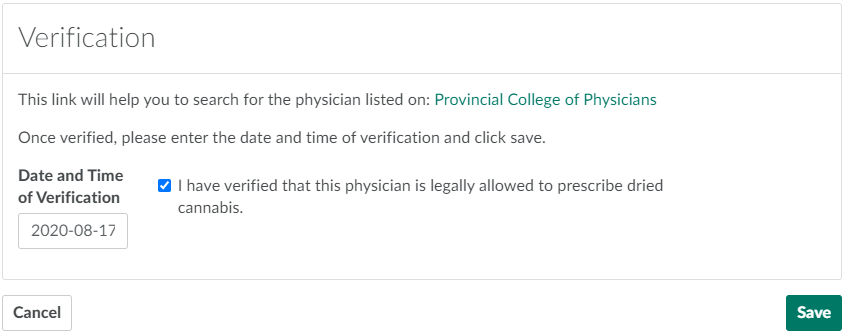
- Follow the link in the Verification section to the Provincial College of Physicians website, and make sure the physician is listed there.
- Enter the date and time of the verification in the field provided.
- Click the checkbox indicating that the physician is legally allowed to prescribe cannabis.
-
Click Save to add the physician.
You can also Add a Physician in the Medical Settings Module.
Adding a valid prescription from a verified physician is an essential step in enabling a client to place orders. For more information, visit the Client Registration Process Guide.