Once a client Submits a Registration Renewal through the Client Portal, their registration information updates in the Client's Profile, and the active registration will be set to the Renewal Verification status. A Customer Service Representative–or CSR–must review the changes, associate a new prescription with the registration, and Change the Registration's Status to Approved to enable the client to place orders once again.
However, rather than submitting a registration renewal, the client may call in to renew their registration over the phone. If this happens, the CSR can renew the client's registration on their behalf.
Required permission(s): client_read, client_update
-
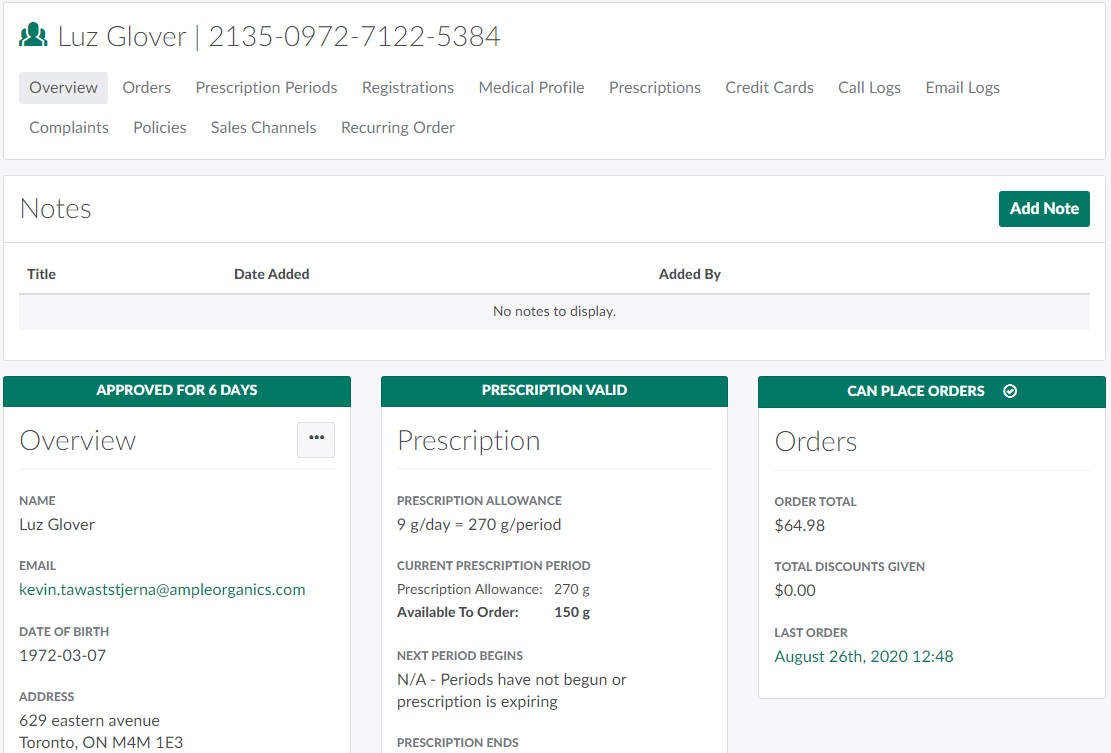
In the Clients module, select a client. This opens the Client's Profile.
-
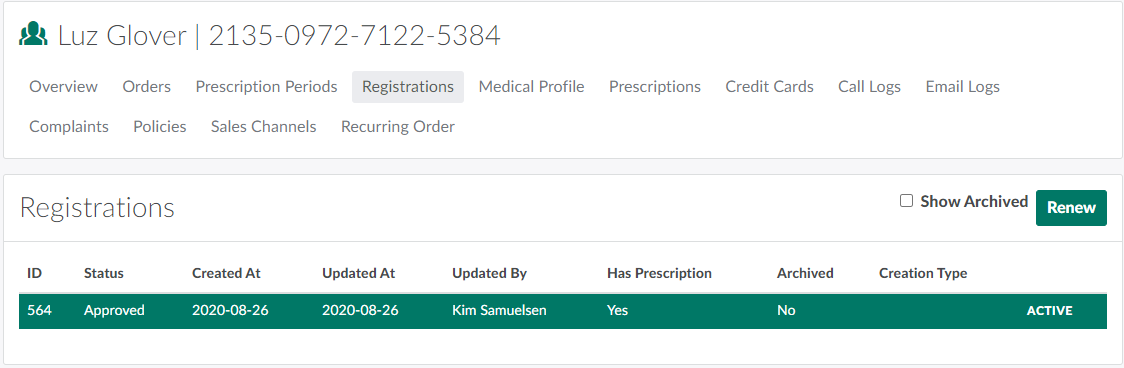
Open the Registrations tab.
-
Click Renew. This opens the New Renewal modal.

-
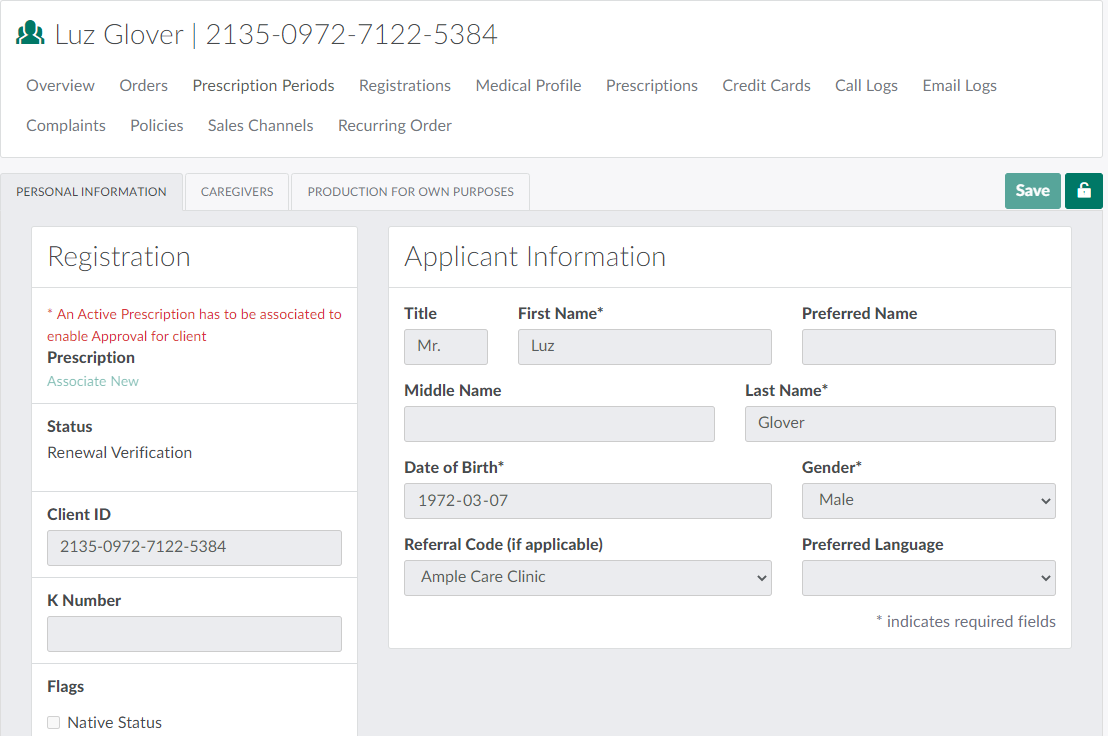
Click Create Renewal. This opens a new registration page, populated with the client's most recent registration details.
-
Click the

icon to unlock editing abilities.
-
Update the client's personal and contact information, as necessary.
-
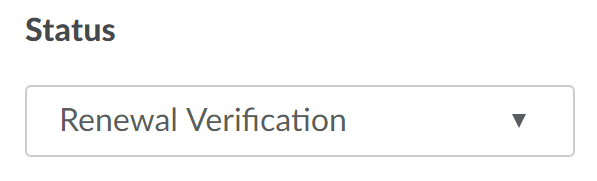
Click Save.The registration status will be set to Renewal Verification.
-
Click the

icon to unlock editing abilities once again, and click Associate New to associate a prescription with the registration.
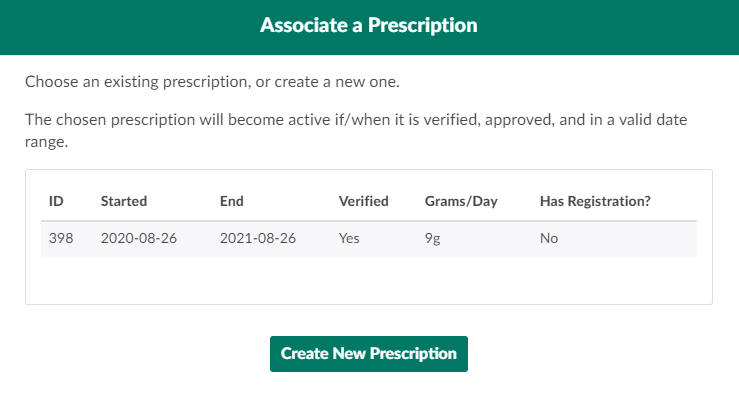
- If there are no available prescriptions, Add a New Prescription.
-
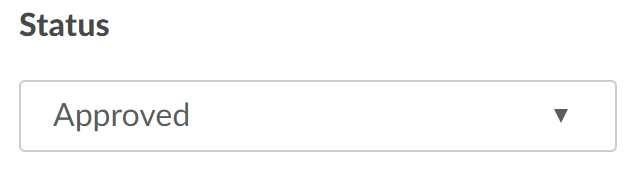
Once the registration has an associated prescription, change the registration's status to Approved.
-
Click Save once again. A Set Active button will appear in the top-right corner of the registration page.

-
Click Set Active to set the registration as the active registration.
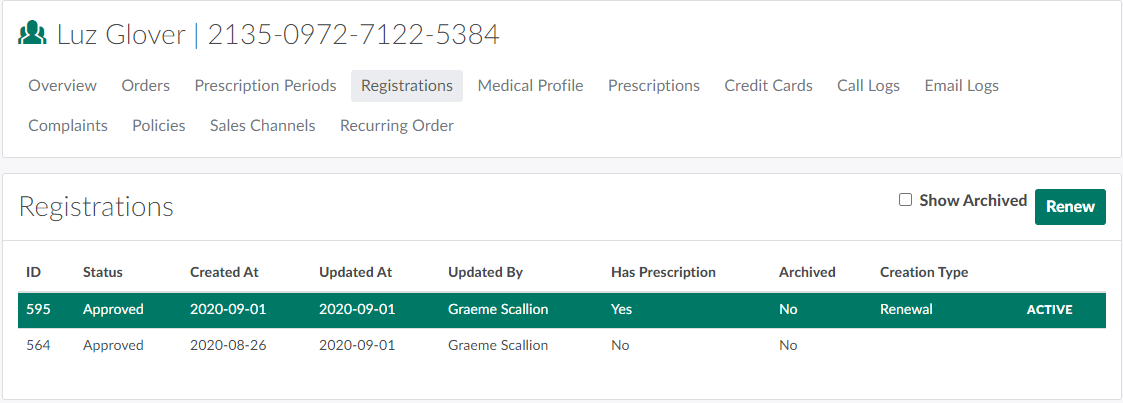
Once the registration has been renewed, the CSR should Generate and Download a Registration Renewal Confirmation Document and Send a Confirmation Email to the client.
A CSR can also manually Amend a Client's Registration.