When a shipping carrier delivers an order, the seed-to-sale software should receive a notification that automatically updates the order's status to Delivered. However, if this delivery notification fails, a Customer Service Representative–or CSR–can manually update the order's status.
Required permission(s): order_read, order_set_delivered
-
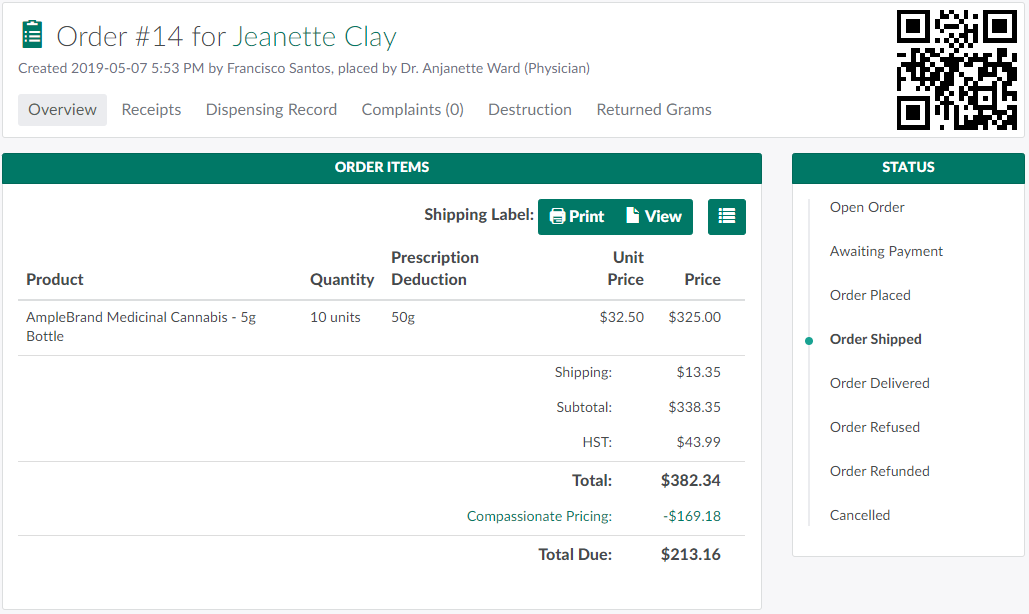
In the Orders module, select an order in the Shipped status.
-
Click the

icon to open a menu of options.
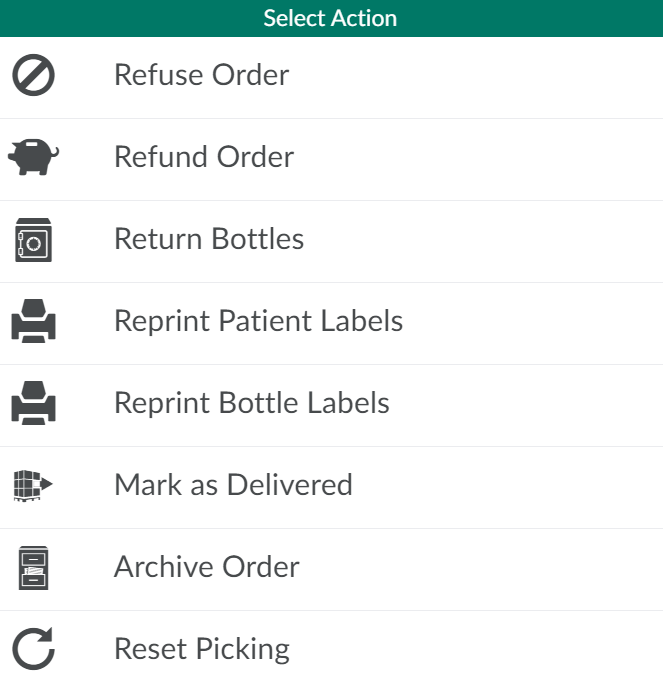
-
Select Mark as Delivered. This opens a confirmation modal.
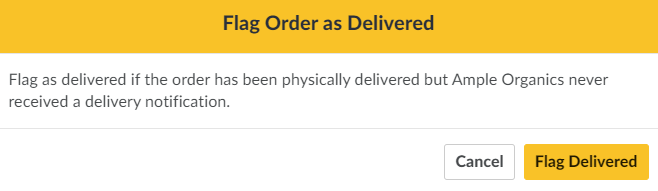
-
Click Flag Delivered. The order's status will be updated to Delivered.

Once an order has been delivered, the order is complete. To declutter the Orders index, a CSR can Archive Individual Orders or Archive All Shipped or Delivered Orders.