If a Grow Technician destroys a plant in error, follow this process to reverse the destruction. Please note that this process restores an entire plant that has been marked as destroyed. The process to Revert a Plant Waste Destruction–a destruction in which the entire plant is not destroyed, like trimming moldy leaves–is slightly different.
Note*: A plant moves to the Archived status once it has been destroyed, harvested, or claimed for wholesale. You cannot unarchive a plant that has been harvested or claimed for wholesale, so this process will only work for plants that have been destroyed.*
Required permission(s): plant_read, plant_restore
-
In the Grow module, open the Propagation tab.
[img propagation] -
Select the Plant Search sub-tab.
[img plant-search] -
Click the All radio button to include archived plants in the search results.

-
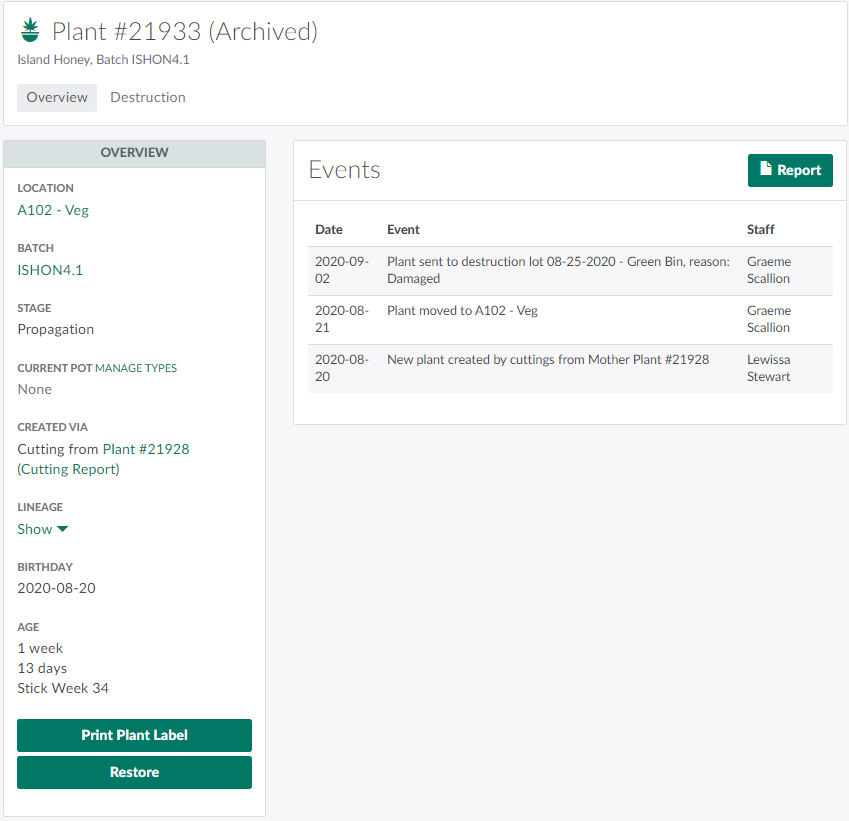
Select a destroyed plant from the list to open the Plant's Profile.
-
Note*: Quickly locate a specific plant by entering the plant's ID number in the search bar.*
-
-
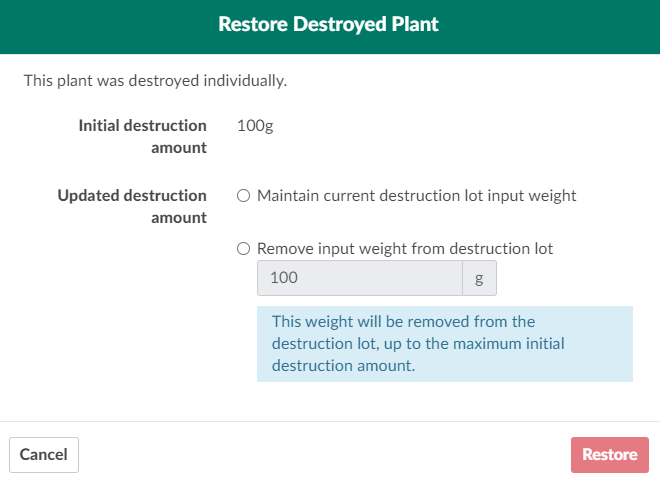
Scroll down, and click Restore. This opens the Restore Destroyed Plant modal.
-
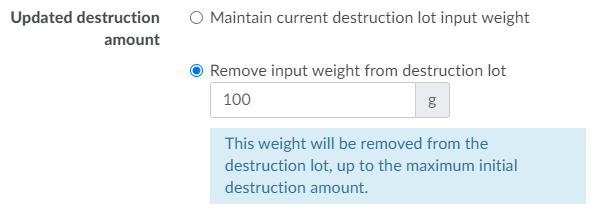
Indicate whether or not to adjust the destruction lot input weight using the radio buttons on the modal. If the plant was destroyed in a mass destruction with other plants, the input weight refers to the aggregate weight of all plants destroyed, so take care to only subtract the weight of the individual plant.
-
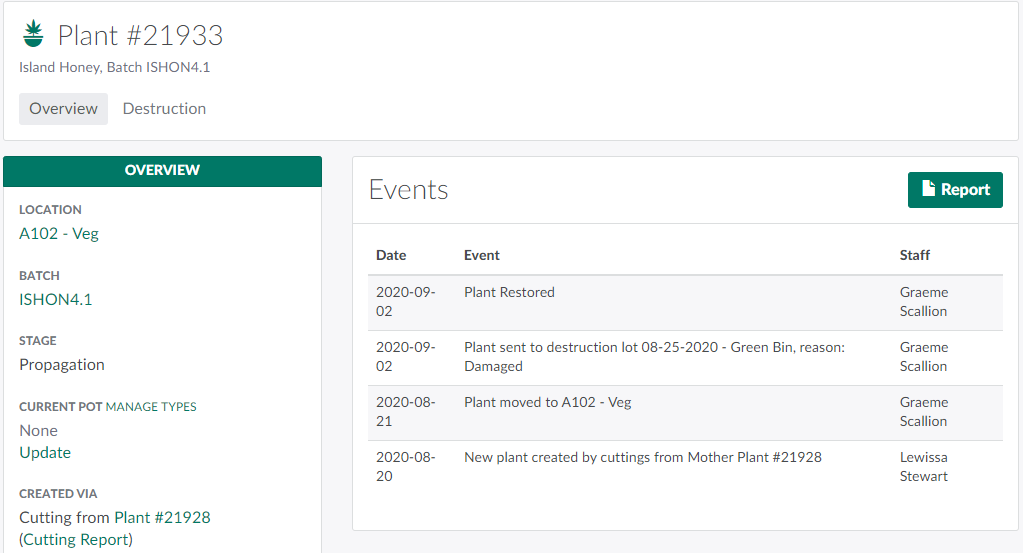
Click Restore to restore the plant.
Visit the Destruction Process Guide for more information on destroying and restoring waste.