When you log into the Seed-to-Sale platform, the Dashboard opens by default. The Dashboard includes charts that track activities throughout the Seed-to-Sale platform over a specified time period. Follow the steps below to print or download one of these charts.
-
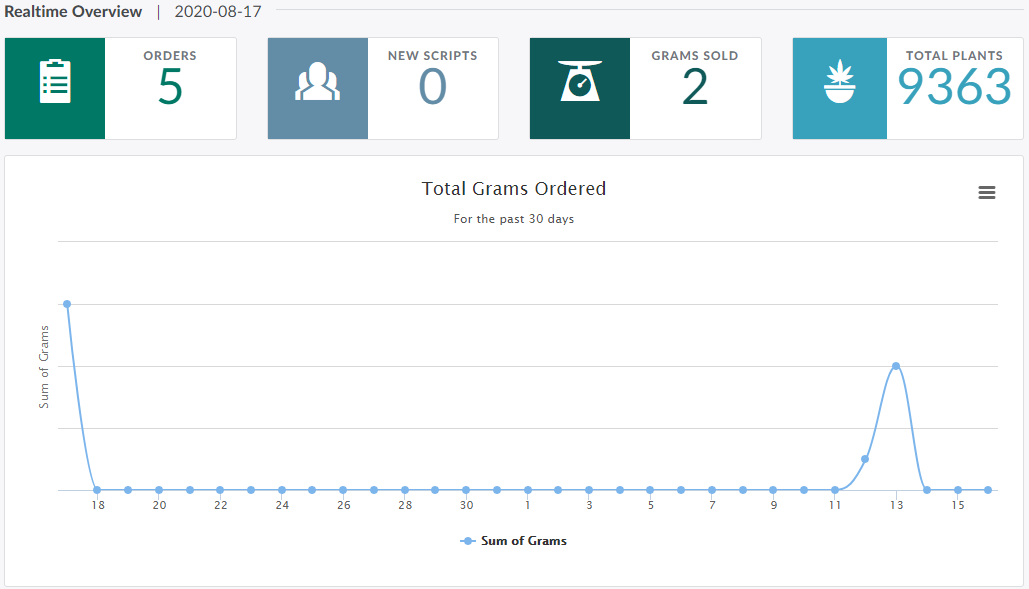
Log in or open the Dashboard. The Dashboard displays three overview charts:
-
Total grams of cannabis ordered over the past 30 days
-
Total orders placed over the past 15 days
-
Total prescriptions verified over the past 15 days
-
-
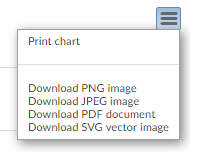
Select a chart and click the icon to open a menu of options.
-
Select Print Chart to send the chart to the local 8.5" by 11" page printer, or download the chart in one of four image formats: PNG, JPEG, PDF, or SVG.
Visit the Reports module to Generate a Custom Report or Monthly Reporting Template.