If an order requires special consideration during the order fulfillment workflow, a Customer Service Representative–or CSR–can attach a note to the order with details. The note will be visible to Fulfillment Associates on the order's Overview tab in the Gun App.
Required permission(s): order_read
-
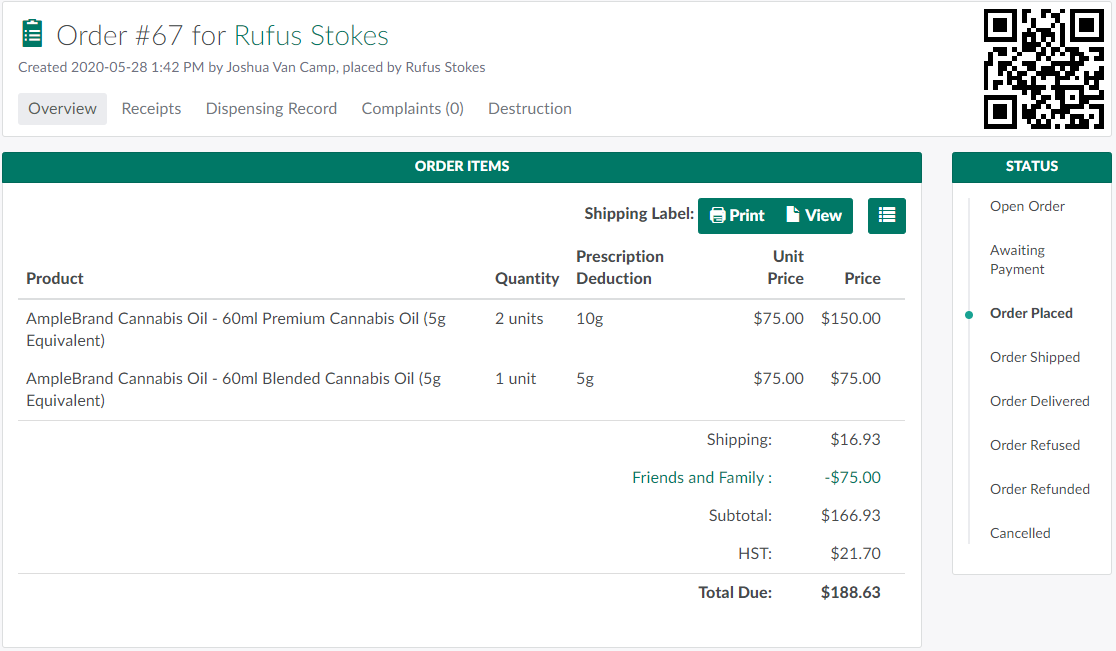
In the Orders module, select an order.
-
Scroll down to the Notes section.

-
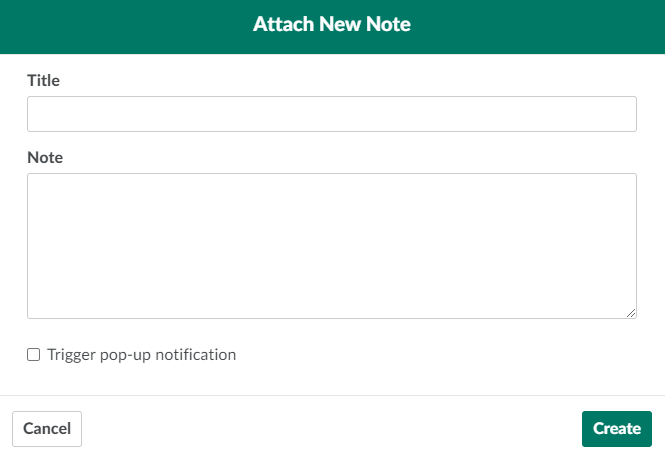
Click New. This opens the Attach New Note modal.
-
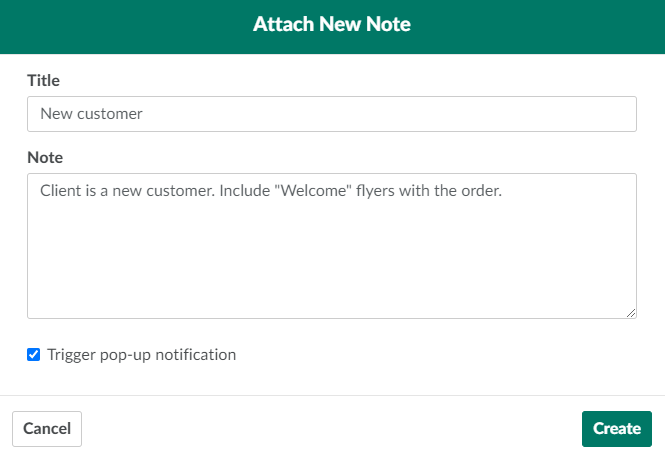
Enter a title and body text for the note in the fields provided.
-
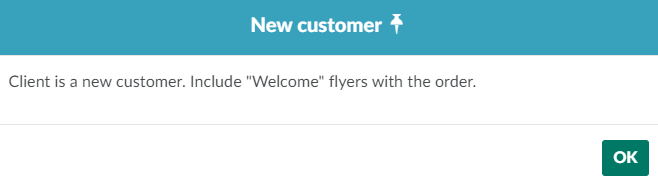
Checking the Trigger pop-up notification box ensures the note will appear as a pop-up notification when a user opens the Order's Profile.
-
-
Click Create to finalize the note. When a Fulfillment Associate opens the order through the Gun App, the

the icon will be coloured to indicate that the order has a note attached.

Visit the Order Fulfillment module on the Gun App to complete the Order Fulfillment Process.