An approved client with a valid credit card can place orders through the Client Portal without the help of a Customer Service Representative–or CSR.
Note*: A CSR logged in as a patient will be unable to complete an order through the portal. A CSR should only enter this workflow to diagnose issues and assist the client in placing their order. To place an order on the client's behalf, visit the Orders module.*
-
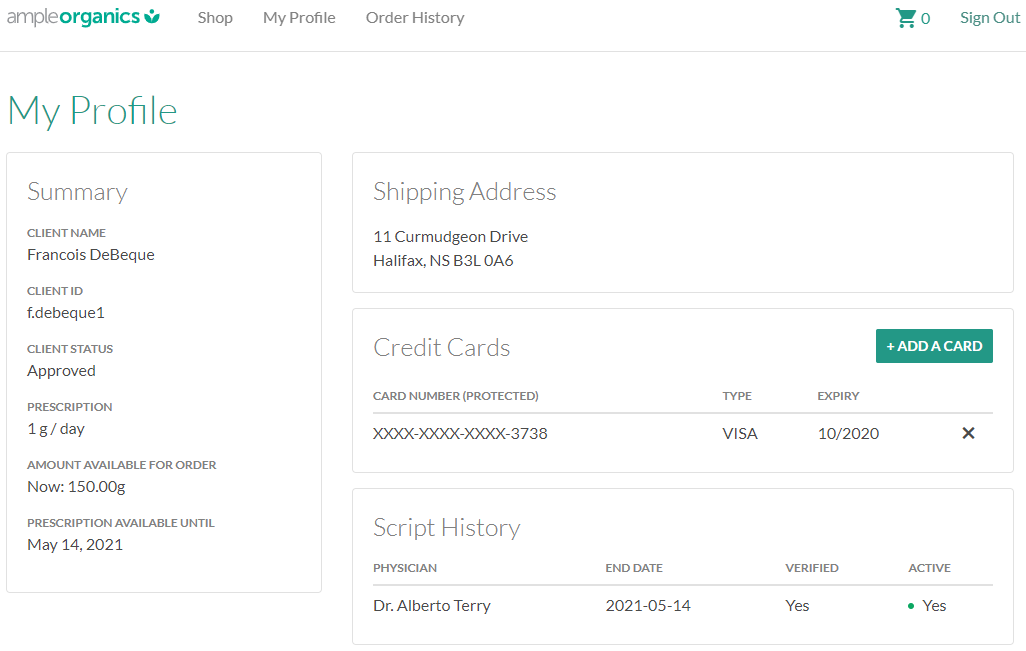
Log into the Client Portal. The My Account tab will open by default.
-
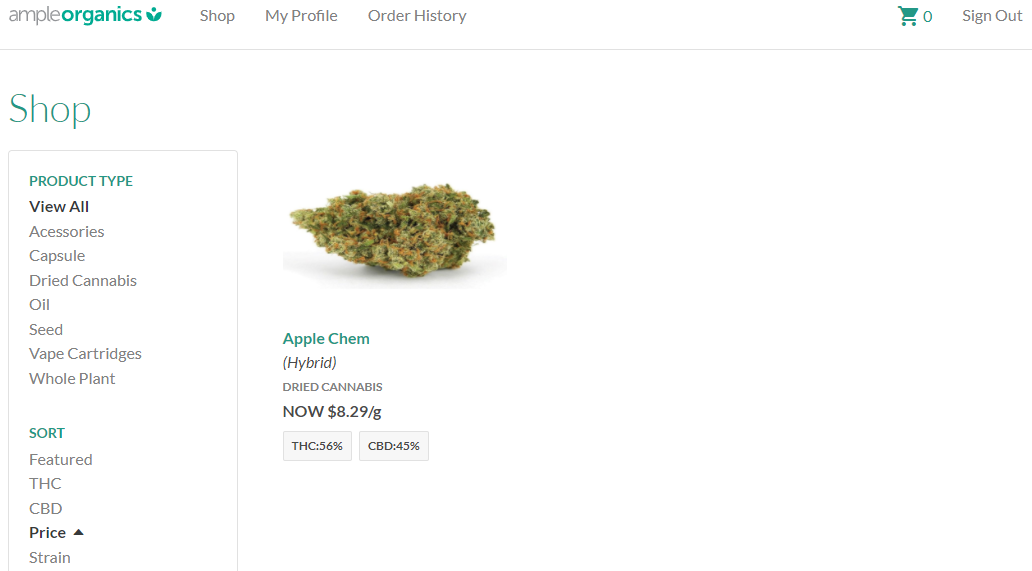
Open the Shop tab. This displays all products available to the client.
-
Add items to the cart.
-
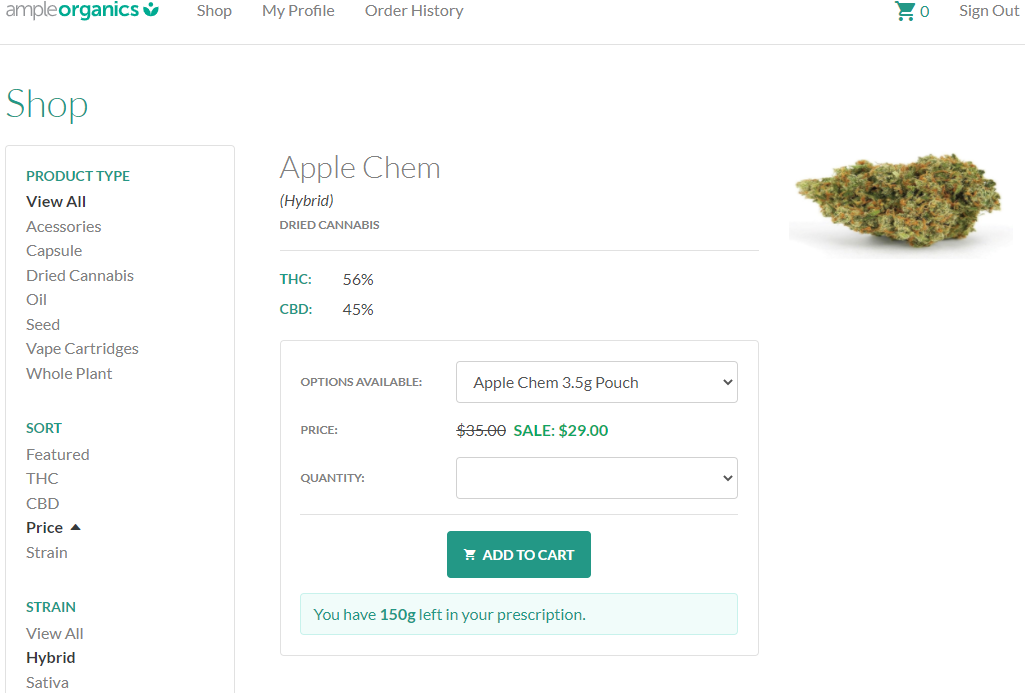
Select a product to open the product's page.
-
Note*: A client can filter the results on the Shop tab by any of the fields in the sidebar.*
-
-
Open the Options Available drop-down menu, and select a SKU.

-
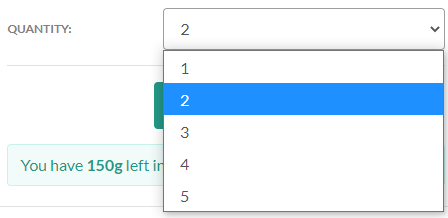
Open the Quantity drop-down menu, and select the quantity to add to the order.
-
Click

to add the item to the cart.

-
Repeat this process for each item in the order.
-
-
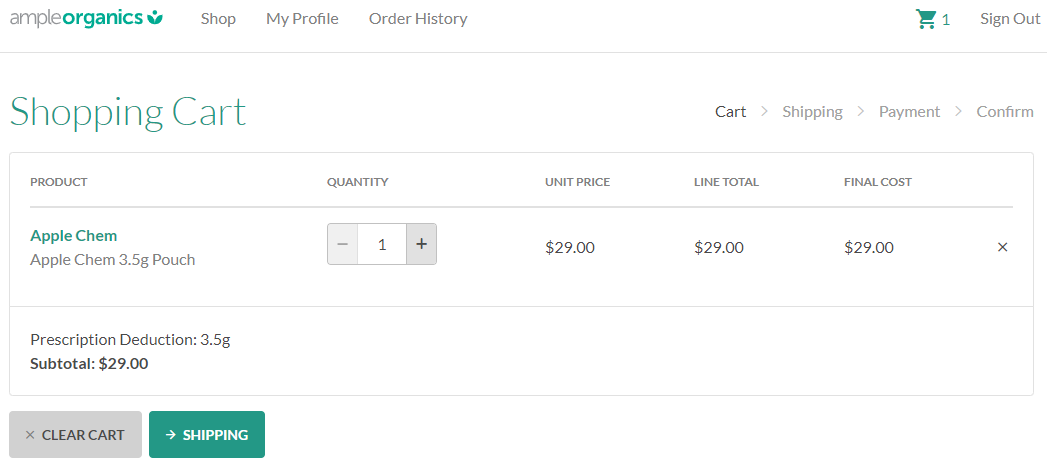
Once the client is finished shopping, click the

icon to access the shopping cart.
-
Click

to proceed to shipping selection.
-
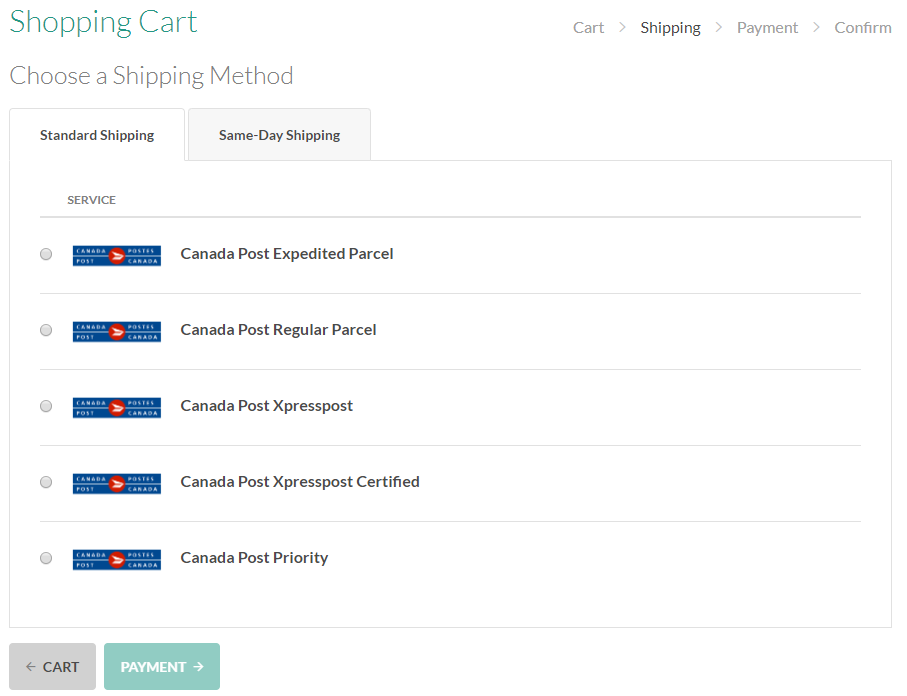
Select a shipping method, and click

to proceed to payment selection.
-
Note*: Depending on the license holder's settings, Same-Day Shipping or Saturday Shipping options may be available.*
-
-
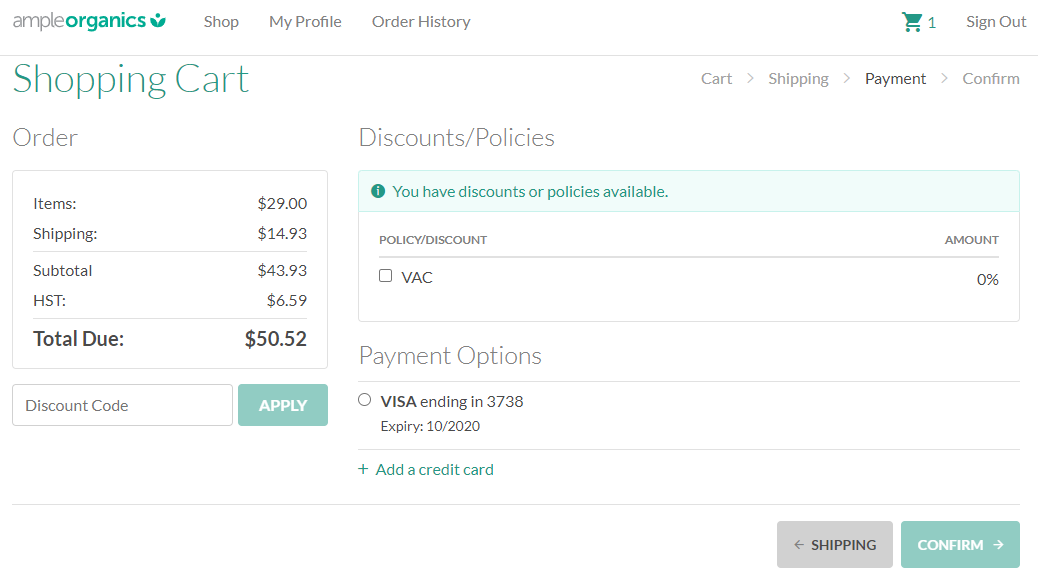
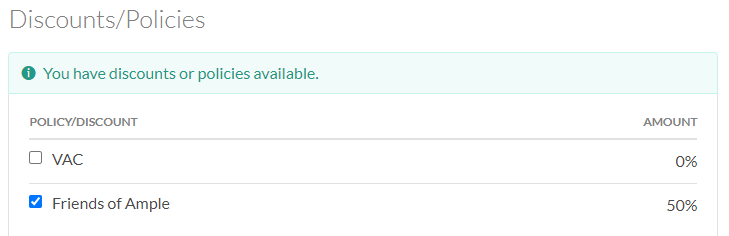
If applicable, enter a discount code in the field provided, and click Apply to redeem the code. Applicable discounts or policies may also appear in the Discounts/Policies section.
-
Select a payment option, and click

to proceed to the order confirmation.
-
To enter information for a new credit card, click Add a credit card.
-
-
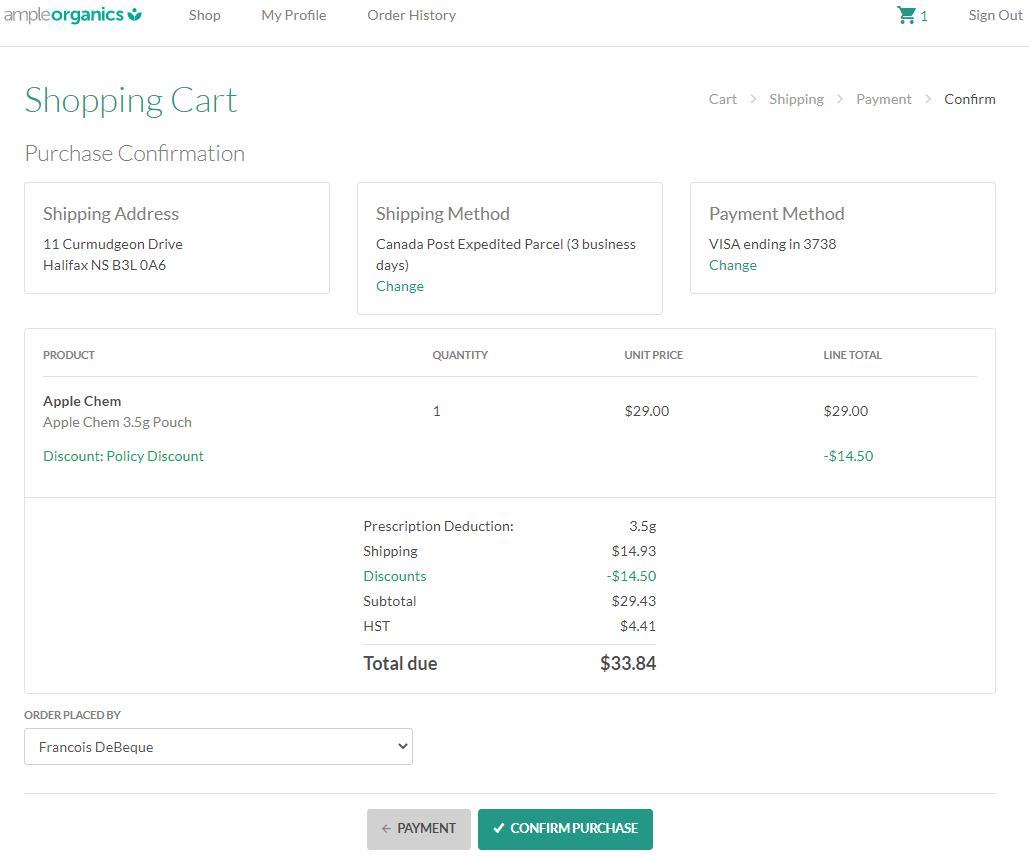
Read through the details on the order confirmation page. If everything is in order, click

to finalize the purchase.
- Note*: A CSR logged in as a patient will be unable to complete an order through the portal. To place an order on the client's behalf, visit the Orders module.*
Visit the My Profile tab to Add a New Credit Card.